Cartwheel · WCAG 2.2 Level AA

Family welcome & onboarding accessibility audit

A WCAG-EM-informed representative technical evaluation of the launched React family onboarding journey and its Rails/Stripe payment boundary.

Technical sample complete · Conformance not determined

Executive summary

25 verified barriers across the core family task

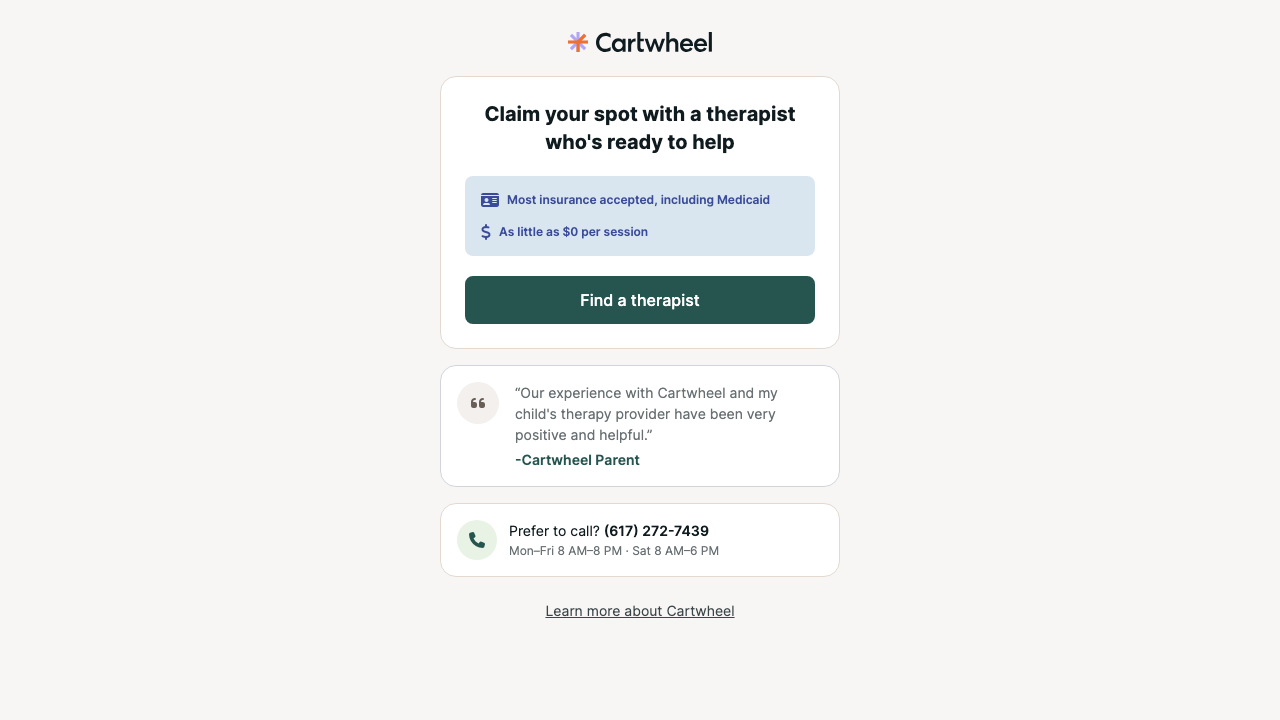
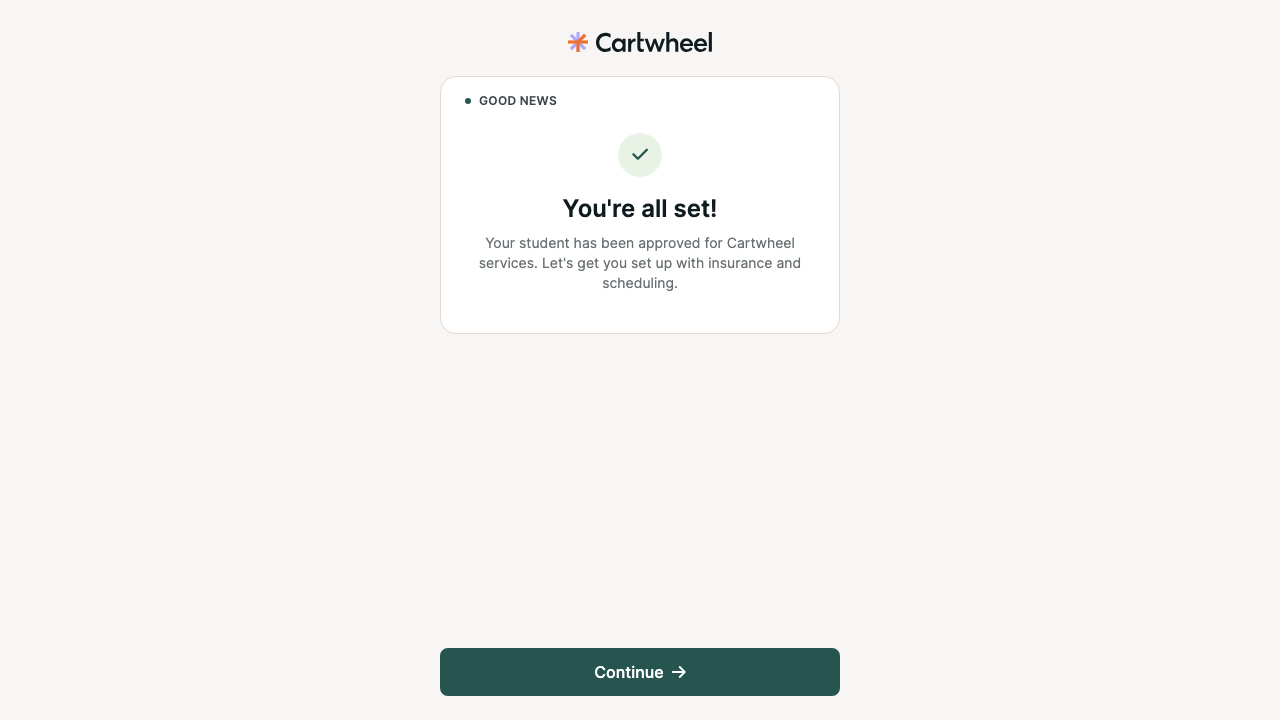
The sample covered welcome, identity, forms, insurance, consent, matching, scheduling, payment, completion, terminal/error states, three locales, keyboard interaction, responsive reflow, forced colors, reduced motion, and selected automated checks. The most consequential barriers affect keyboard uploads, consent semantics and focus, route context, appointment selection, localization, and time limits.

25Verified findings
16Serious
9Moderate
54Visual evidence files
Important: This completes the planned Chromium-based technical sample, not a WCAG conformance determination. VoiceOver, NVDA, actual 200% browser zoom, complete non-text contrast, pointer cancellation, disabled-user testing, and rendered legacy parity remain open.

Remediation order

  1. Restore keyboard operation for insurance uploads and focus after navigation.
  2. Fix shared titles, language, groups, dialogs, states, appointment labels, and status/error announcements.
  3. Correct legal-consent semantics, focus, signer autocomplete, and terms dialog naming.
  4. Remove uncontrolled timed transitions and honor reduced motion.
  5. Localize all downstream visible and accessible content, including dates and loading states.
  6. Correct completion contrast/non-text defects and add deterministic regression tests.

Criterion results

WCAG 2.2 A/AA matrix

19Failed criteria
18Passed in sample
3Undetermined
15Not applicable

Only verified evidence establishes Pass or Fail. No conformance percentage is calculated.

CriterionLevelResultEvidence / note
1.1.1 Non-text ContentAFailA11Y-023
1.2.1 Audio-only and Video-only (Prerecorded)ANot ApplicableNo prerecorded audio/video
1.2.2 Captions (Prerecorded)ANot ApplicableNo prerecorded media
1.2.3 Audio Description or Media Alternative (Prerecorded)ANot ApplicableNo prerecorded media
1.2.4 Captions (Live)AANot ApplicableNo live media
1.2.5 Audio Description (Prerecorded)AANot ApplicableNo prerecorded media
1.3.1 Info and RelationshipsAFailA11Y-003, 005, 009, 014, 015, 017, 019
1.3.2 Meaningful SequenceAPassSampled reading order remained meaningful
1.3.3 Sensory CharacteristicsAPassNo sampled instruction relied only on sensory characteristics
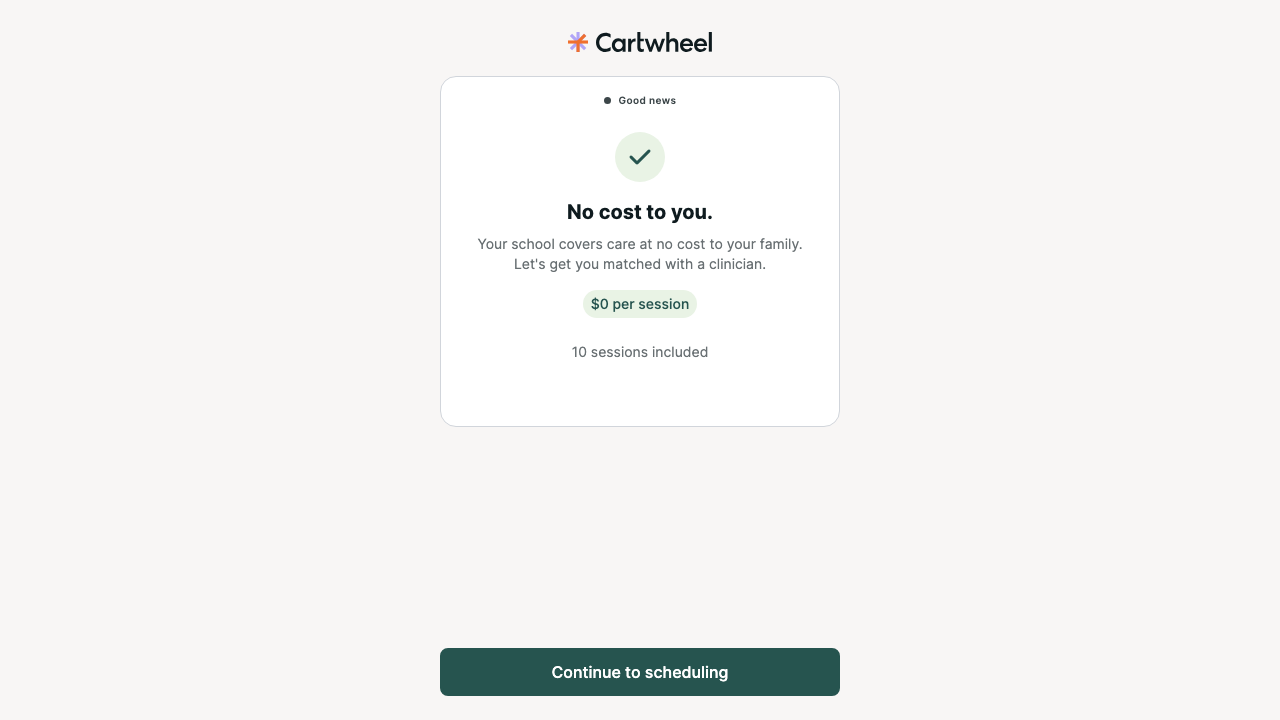
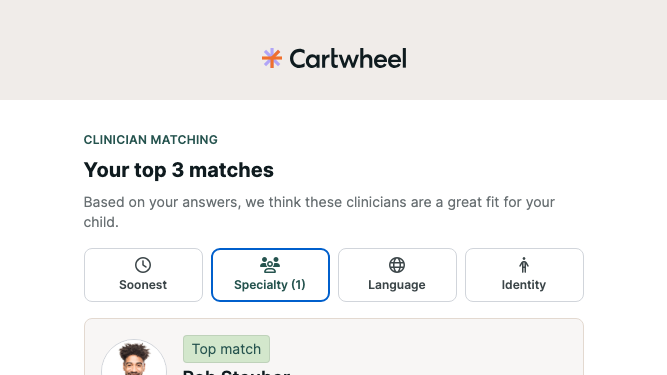
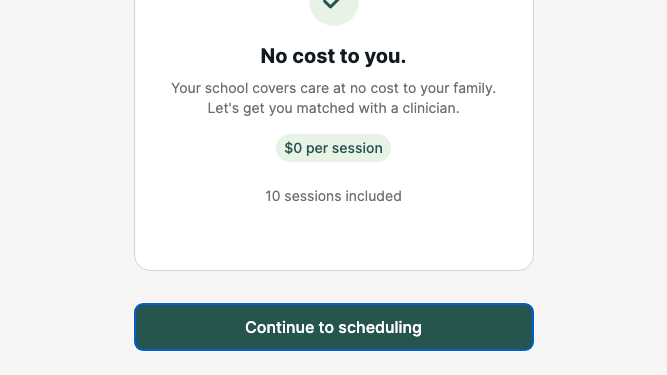
1.3.4 OrientationAAPassMatching and no-cost states worked in 667×375 landscape
1.3.5 Identify Input PurposeAAFailA11Y-022
1.4.1 Use of ColorAFailA11Y-003
1.4.2 Audio ControlANot ApplicableNo automatically playing audio
1.4.3 Contrast (Minimum)AAFailA11Y-024
1.4.4 Resize TextAAUndeterminedActual 200% browser zoom not verified
1.4.5 Images of TextAANot ApplicableNo required images of text beyond branding
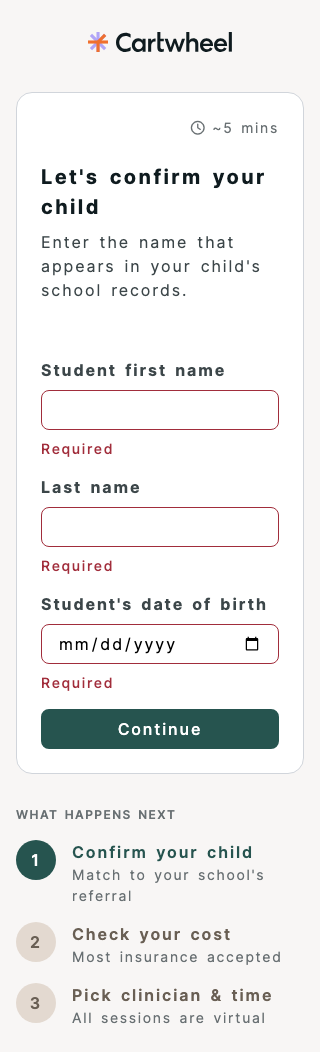
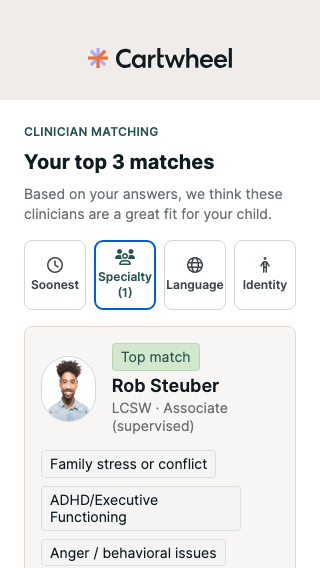
1.4.10 ReflowAAPassRepresentative states passed at 320 CSS px
1.4.11 Non-text ContrastAAUndeterminedComplete visual contrast inventory remains open
1.4.12 Text SpacingAAPassRepresentative identity state passed spacing overrides
1.4.13 Content on Hover or FocusAANot ApplicableNo triggered content in sampled task
2.1.1 KeyboardAFailA11Y-005
2.1.2 No Keyboard TrapAPassNo trap found; sampled dialogs supported Escape/restoration
2.1.4 Character Key ShortcutsANot ApplicableNo character shortcuts
2.2.1 Timing AdjustableAFailA11Y-018
2.2.2 Pause, Stop, HideANot ApplicableNo qualifying moving content over five seconds
2.3.1 Three Flashes or Below ThresholdAPassNo flashing content observed
2.4.1 Bypass BlocksANot ApplicableNo repeated navigation before the primary task
2.4.2 Page TitledAFailA11Y-001, 013
2.4.3 Focus OrderAFailA11Y-007
2.4.4 Link Purpose (In Context)APassSampled links had understandable purpose
2.4.5 Multiple WaysAANot ApplicableStep-by-step process exception
2.4.6 Headings and LabelsAAFailA11Y-015, 016
2.4.7 Focus VisibleAAFailA11Y-004, 011
2.4.11 Focus Not Obscured (Minimum)AAPassSampled focused actions remained visible or scrolled into view
2.5.1 Pointer GesturesANot ApplicableNo multipoint/path gesture
2.5.2 Pointer CancellationAUndeterminedPointer event timing not exhaustively traced
2.5.3 Label in NameAFailA11Y-005
2.5.4 Motion ActuationANot ApplicableNo motion-actuated function
2.5.7 Dragging MovementsAANot ApplicableNo drag-only interaction
2.5.8 Target Size (Minimum)AAPass30×30 waitlist cells; undersized Back icons met spacing exception
3.1.1 Language of PageAFailA11Y-002, 012
3.1.2 Language of PartsAAFailA11Y-021
3.2.1 On FocusAPassFocus alone caused no sampled context change
3.2.2 On InputAFailA11Y-025
3.2.3 Consistent NavigationAAPassRepeated navigation retained relative placement
3.2.4 Consistent IdentificationAAPassRepeated controls were consistently identified
3.2.6 Consistent HelpAPassRepeated help appeared after primary content
3.3.1 Error IdentificationAFailA11Y-008, 020
3.3.2 Labels or InstructionsAPassSampled inputs retained visible labels/instructions
3.3.3 Error SuggestionAAFailA11Y-008, 020
3.3.4 Error Prevention (Legal, Financial, Data)AAPassConsent and booking used review/confirmation
3.3.7 Redundant EntryAPassNo unnecessary re-entry verified
3.3.8 Accessible Authentication (Minimum)AAPassPaste/input assistance allowed; no puzzle/object recognition
4.1.2 Name, Role, ValueAFailA11Y-003, 006, 010, 014, 015, 016
4.1.3 Status MessagesAAFailA11Y-008, 014, 020

Detailed results

Verified findings

A11Y-001

React onboarding views have empty document titles

SeriousVerified
WCAG 2.4.2
Affected task
Identify each onboarding step
Functional ability
screen-reader navigation; orientation and memory
Environment / state
Local Chromium, React/Rails development build 7383dd338; multiple /v2/onboarding/:signedId/* routes

Reproduction

  1. Open representative React onboarding steps.
  2. Inspect document.title on initial load and after client-side navigation.

Observed

`document.title` was empty on welcome, identity verification, concerns, service line, address, card upload, consents, and invalid-link states. Axe reported `document-title` on every scanned state.

Expected

Each page has a unique localized title describing the current step.

Impact

Browser tabs, history, and assistive-technology page identification do not distinguish onboarding steps.

Recommended correction

Define a localized title for the onboarding layout or each step and verify it changes with route navigation.

Verification

Assert the exact title on initial load and after each client-side step transition.

Source ownership and locations

Owner/root cause: Onboarding routes export no route metadata; `portal/app/root.tsx:30-34` renders `<Meta />` but receives no onboarding title.

  • portal/app/root.tsx:30-34
English welcome page, desktop
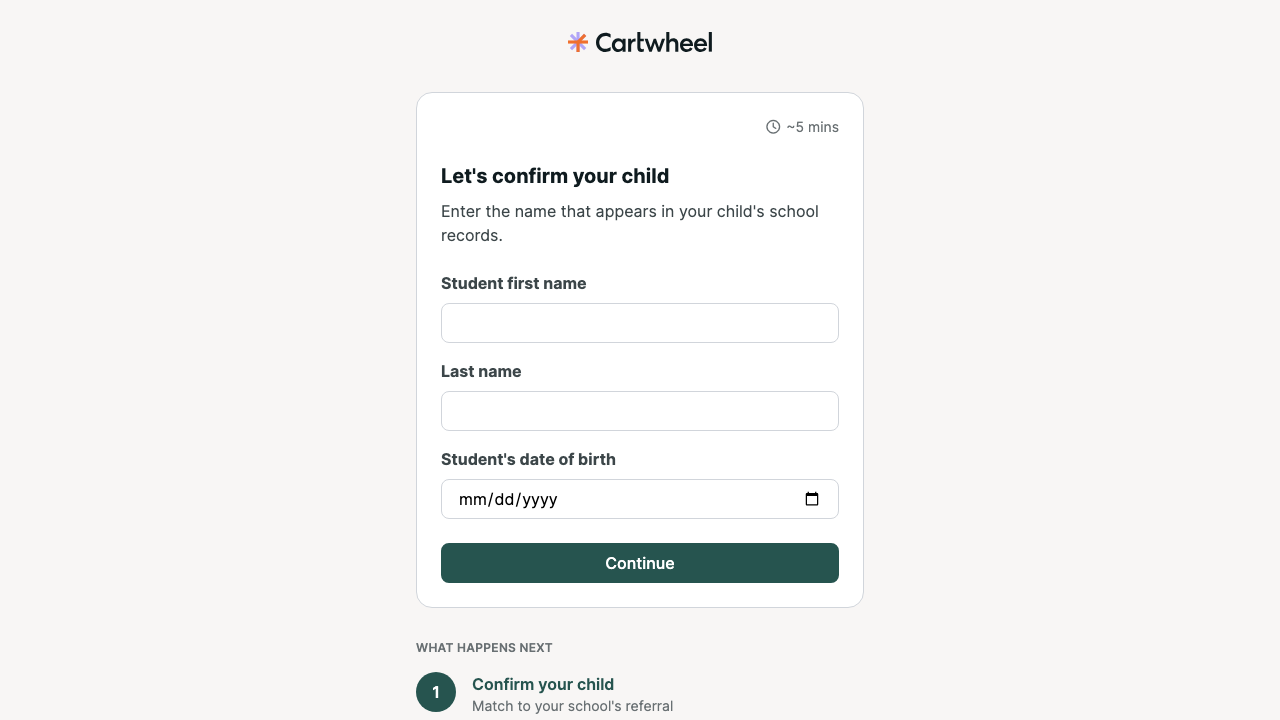
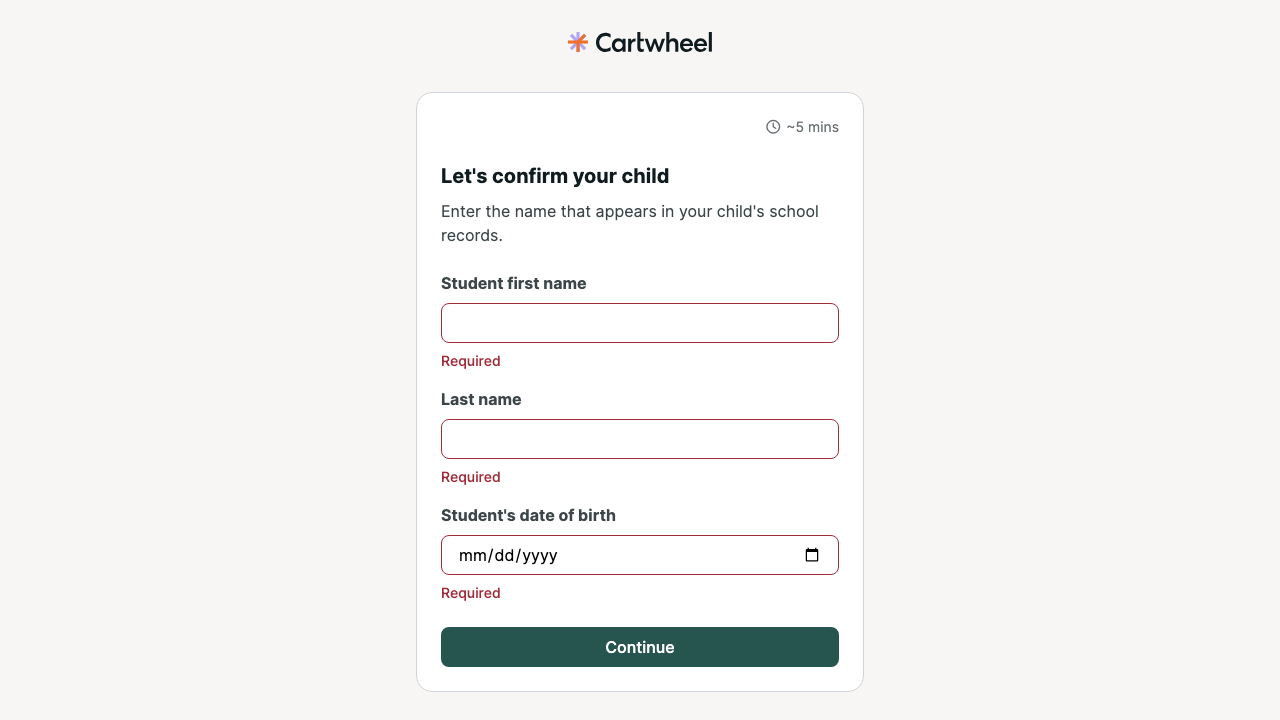
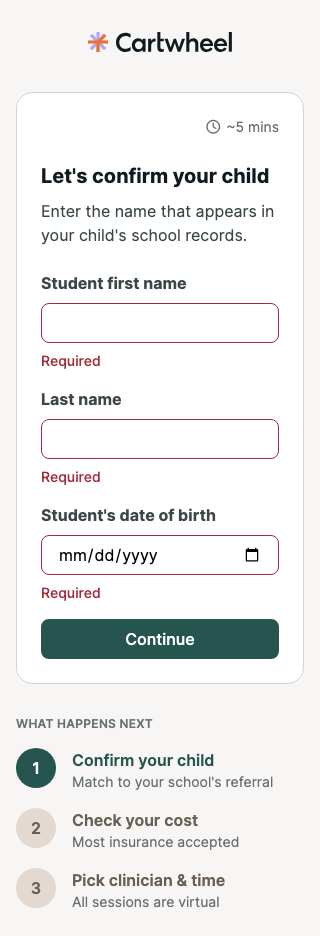
Identity verification page, initial state
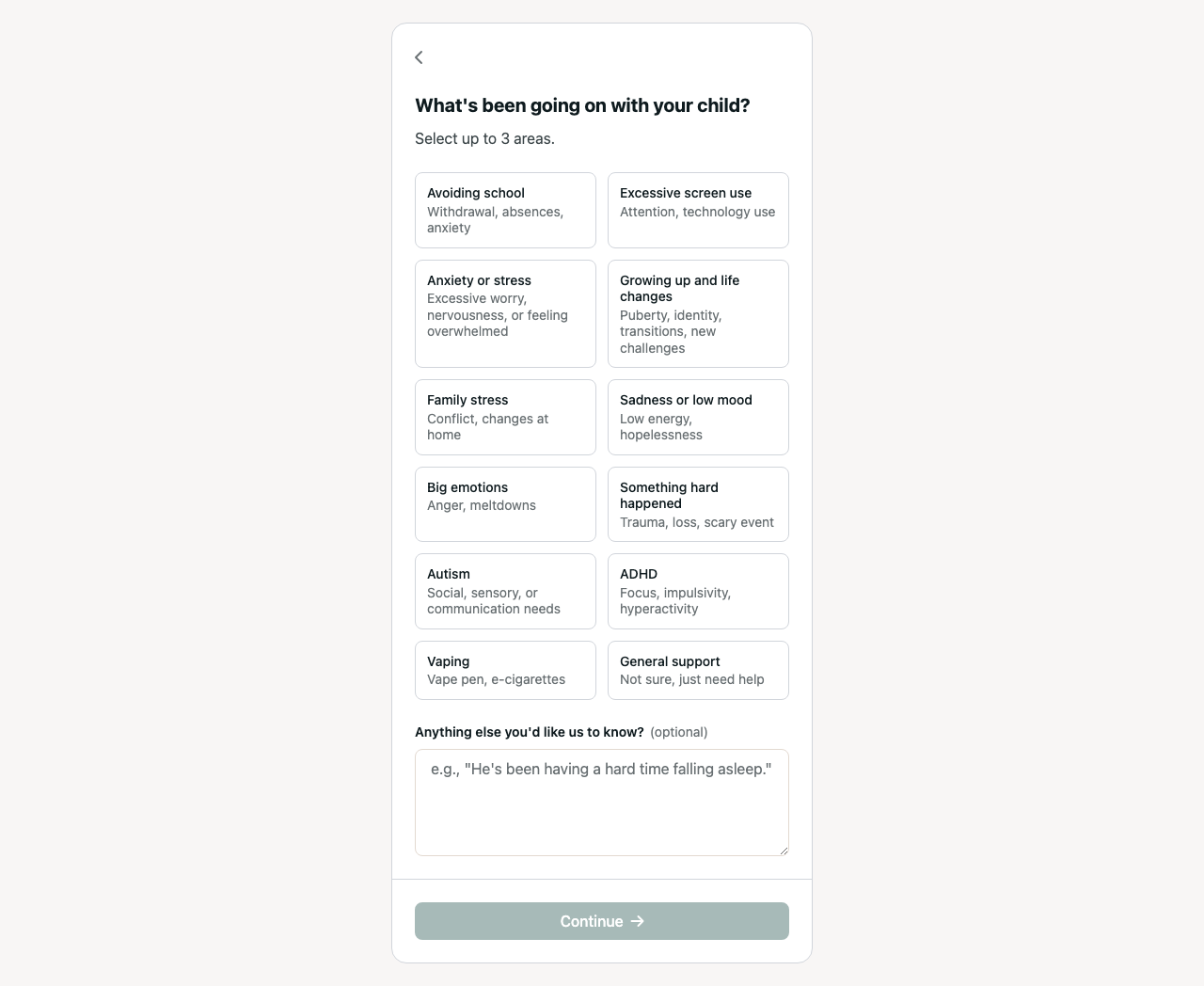
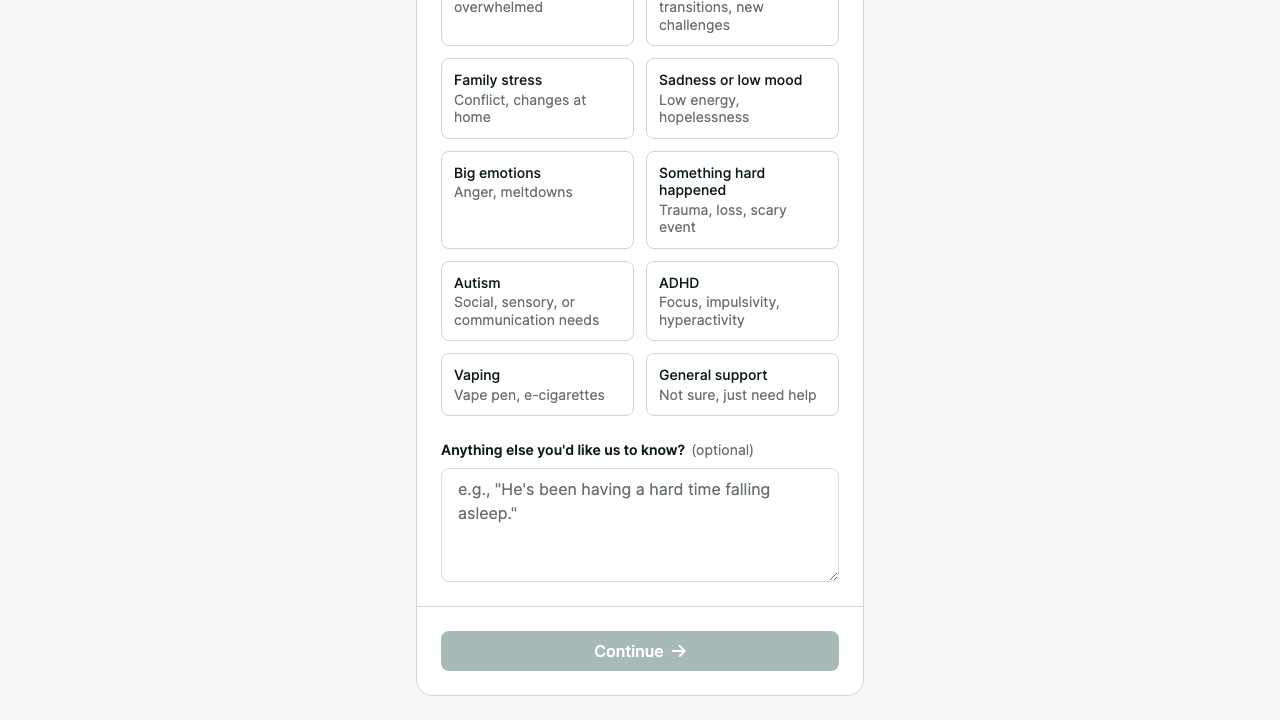
Concern selection page, desktop
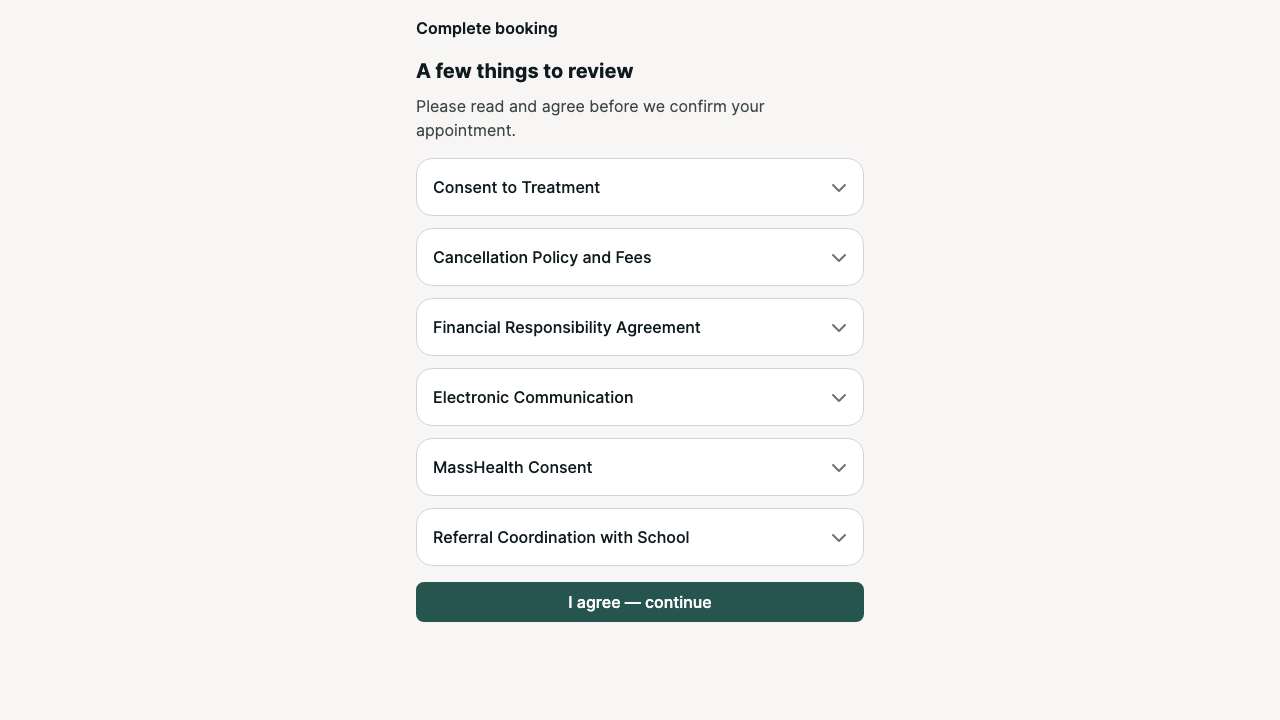
Required-consent introduction

A11Y-002

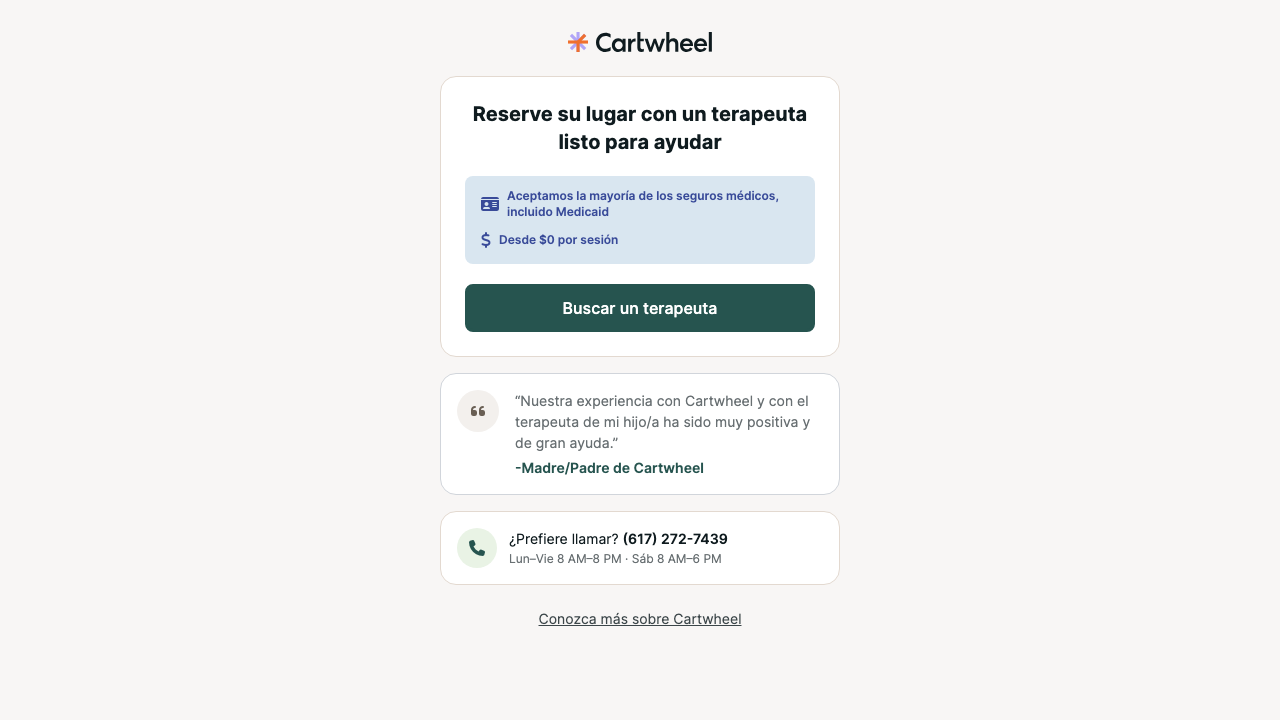
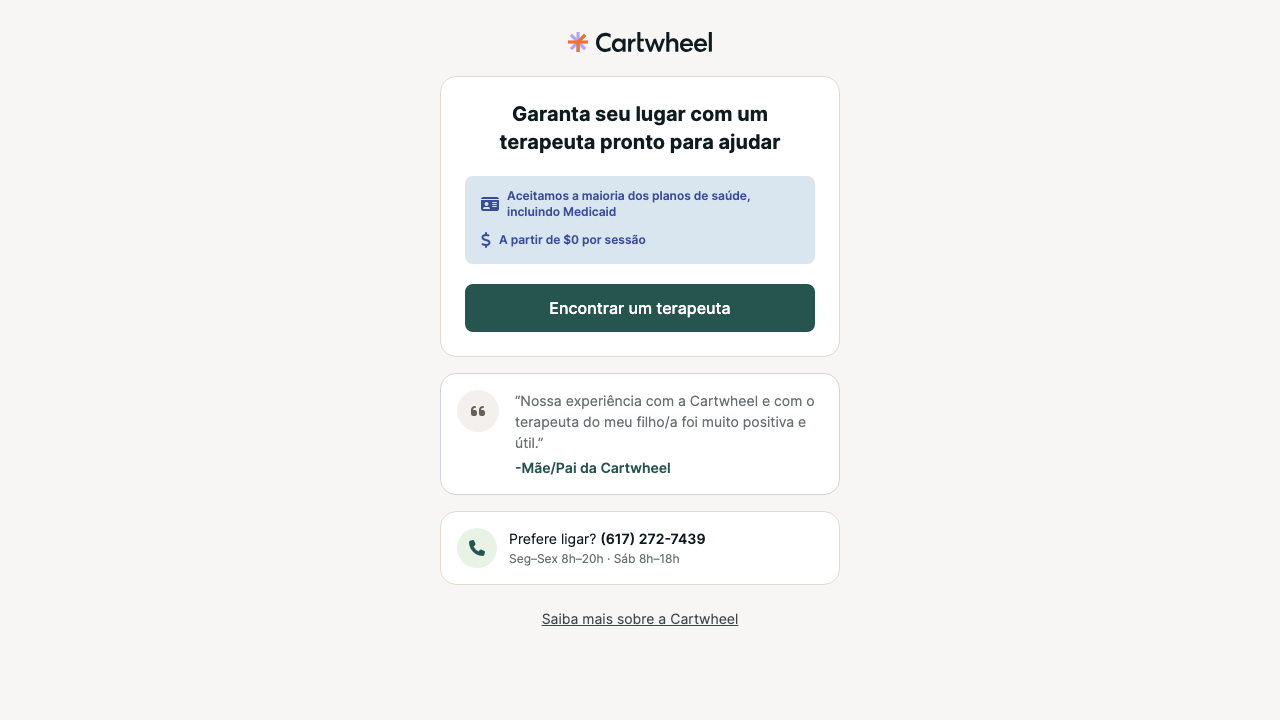
Spanish and Portuguese onboarding content is declared as English

SeriousVerified
WCAG 3.1.1
Affected task
Use onboarding in Spanish or Portuguese
Functional ability
language comprehension; screen-reader pronunciation
Environment / state
Local Chromium, React/Rails development build 7383dd338; welcome?locale=es and welcome?locale=pt

Reproduction

  1. Open welcome with locale=es and locale=pt.
  2. Compare visible language with the html lang value.

Observed

The Spanish and Portuguese welcome pages rendered localized copy while `<html lang="en">` remained unchanged.

Expected

The page language matches the resolved locale and updates with locale changes.

Impact

Screen readers and other language-aware tools may apply English pronunciation and processing rules to Spanish and Portuguese content.

Recommended correction

Set the document language from the resolved application locale and update it when locale changes.

Verification

Assert `es`, `pt`, and `en` on representative localized routes.

Source ownership and locations

Owner/root cause: `portal/app/root.tsx:29` hardcodes `lang="en"`.

  • portal/app/root.tsx:29
Spanish welcome content while document language remains English
Portuguese welcome content while the document language remains English

A11Y-003

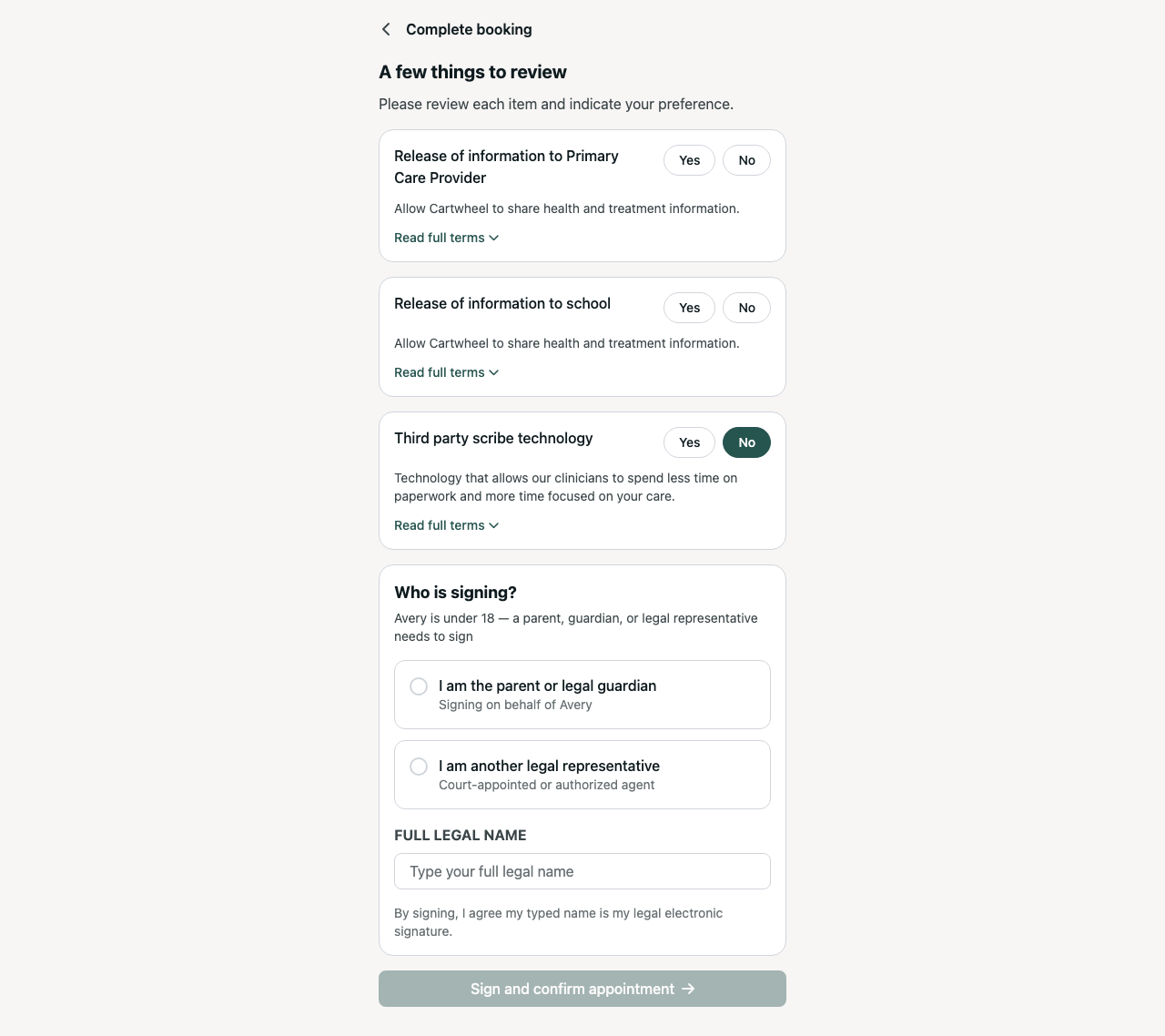
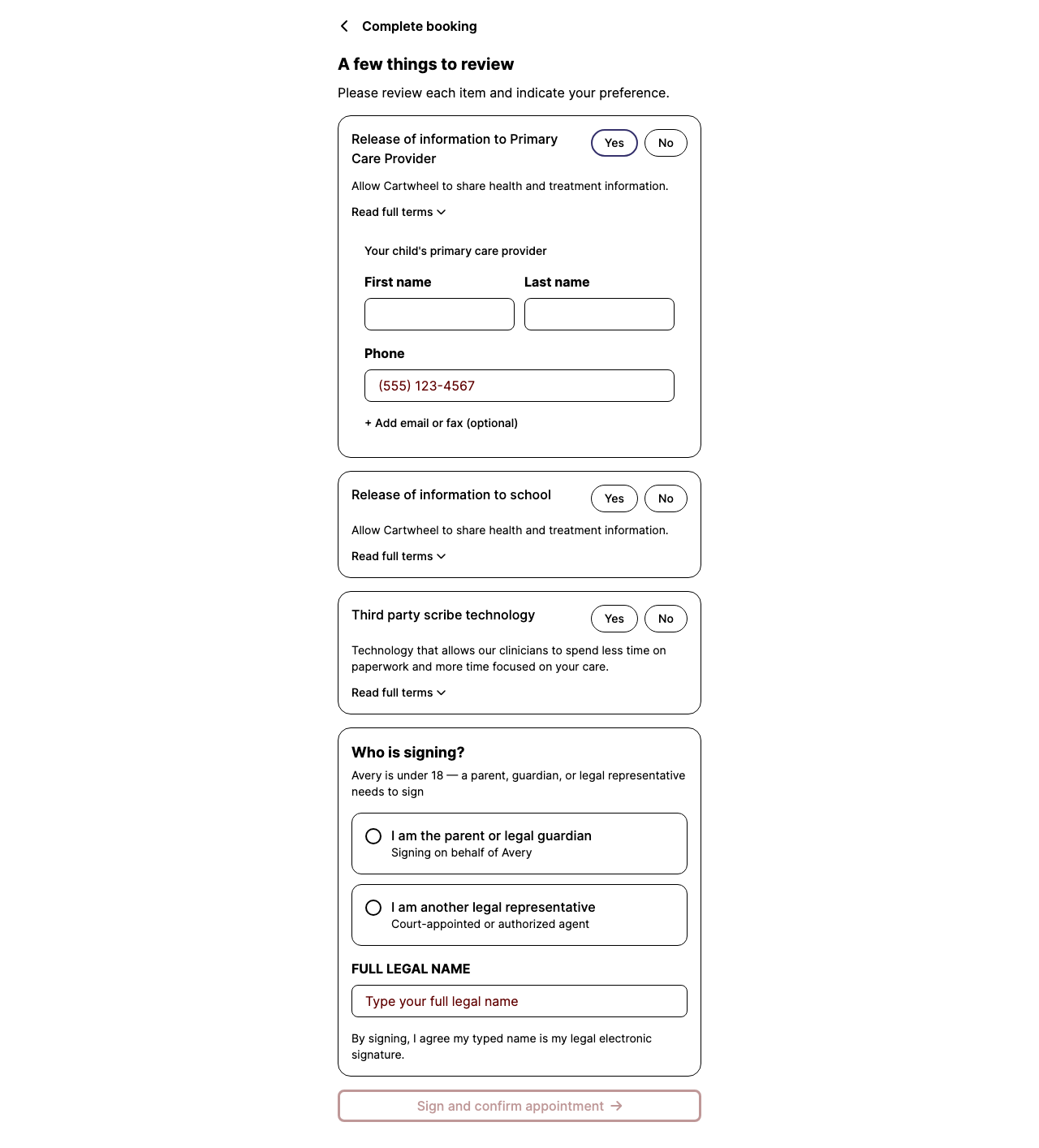
Optional consent choices expose no selected state or consent-specific name

SeriousVerified
WCAG 1.3.1WCAG 1.4.1WCAG 4.1.2
Affected task
Answer optional consent questions
Functional ability
screen-reader operation; color perception
Environment / state
Local Chromium, React/Rails development build 7383dd338; consents optional panel

Reproduction

  1. Advance from required to optional consents.
  2. Inspect repeated Yes/No names and select a response.
  3. Inspect role and selected state in the accessibility tree.

Observed

Each consent uses repeated ordinary buttons named only “Yes” and “No.” Selecting one changes colors but adds no `aria-pressed`, `aria-checked`, radio role, or programmatic association with the consent heading.

Expected

Each consent is a named single-choice group with a programmatically exposed selection, not color alone.

Impact

A screen-reader user cannot reliably determine which repeated choice belongs to which consent or which answer is selected.

Recommended correction

Model each pair as a labeled radio group or another standard single-selection control with a programmatic group name and selected value.

Verification

Inspect the accessibility tree and complete all choices using keyboard and screen reader.

Source ownership and locations

Owner/root cause: portal/app/components/onboarding-consents-screen.tsx:185-217

  • portal/app/components/onboarding-consents-screen.tsx:185-217
Optional consent choices

A11Y-004

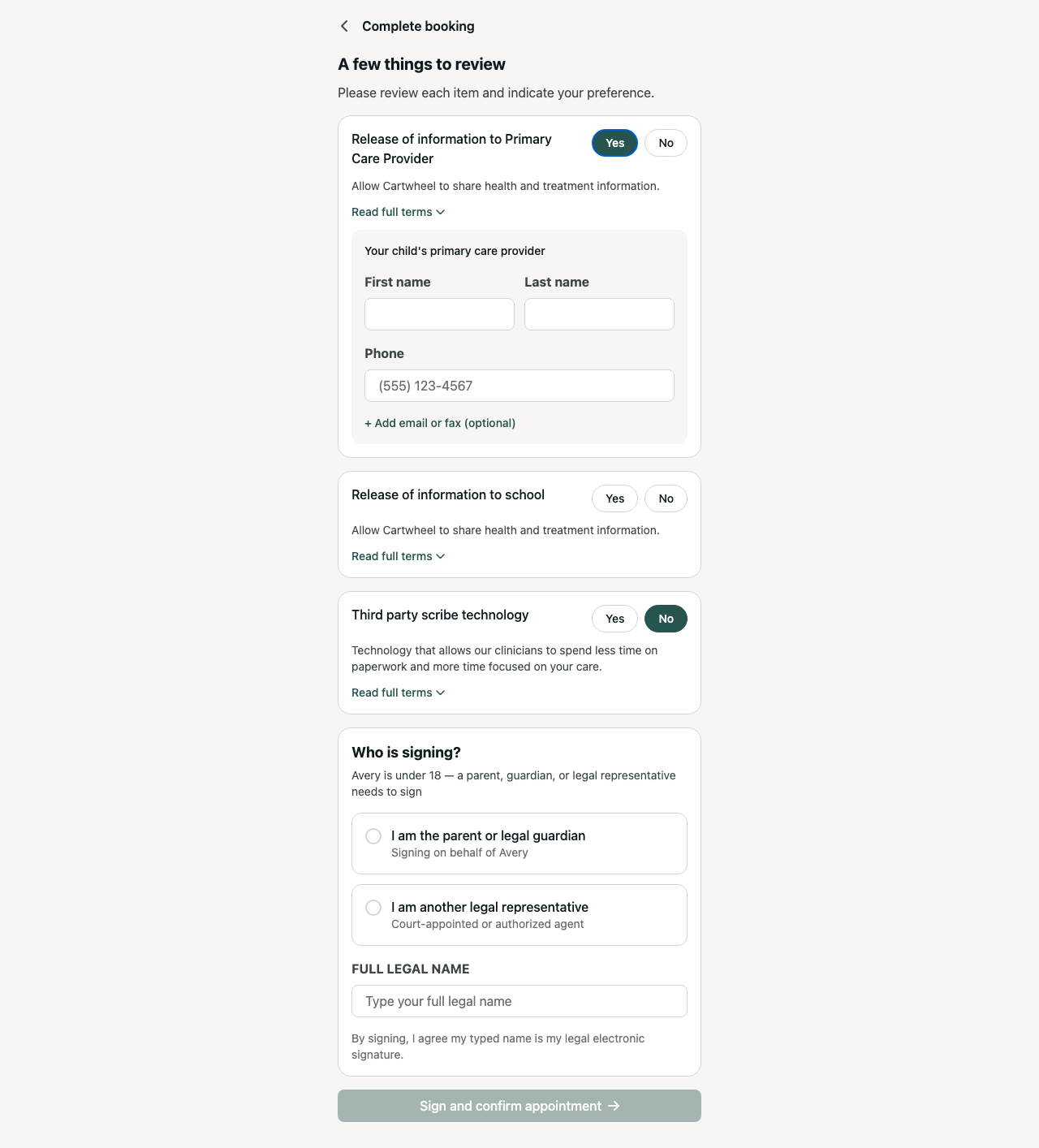
Consent Yes/No buttons have no visible keyboard focus indicator

SeriousVerified
WCAG 2.4.7
Affected task
Answer optional consent questions by keyboard
Functional ability
keyboard and low-vision operation
Environment / state
Local Chromium, React/Rails development build 7383dd338; consents optional panel

Reproduction

  1. Tab to a consent Yes or No button.
  2. Observe focus without activating it.

Observed

A focused Yes button computed to `outline: none` and `box-shadow: none`. Space activated it, but focus location was not visually apparent.

Expected

Every focused consent choice has a persistent visible focus indicator in standard and forced colors.

Impact

Keyboard users cannot track which legal decision control will be activated.

Recommended correction

Use the shared focus-visible treatment with adequate contrast on both selected and unselected states.

Verification

Tab through every consent choice in default and forced-colors modes.

Source ownership and locations

Owner/root cause: portal/app/components/onboarding-consents-screen.tsx:197-215

  • portal/app/components/onboarding-consents-screen.tsx:197-215
Consent Yes button during keyboard focus check

A11Y-005

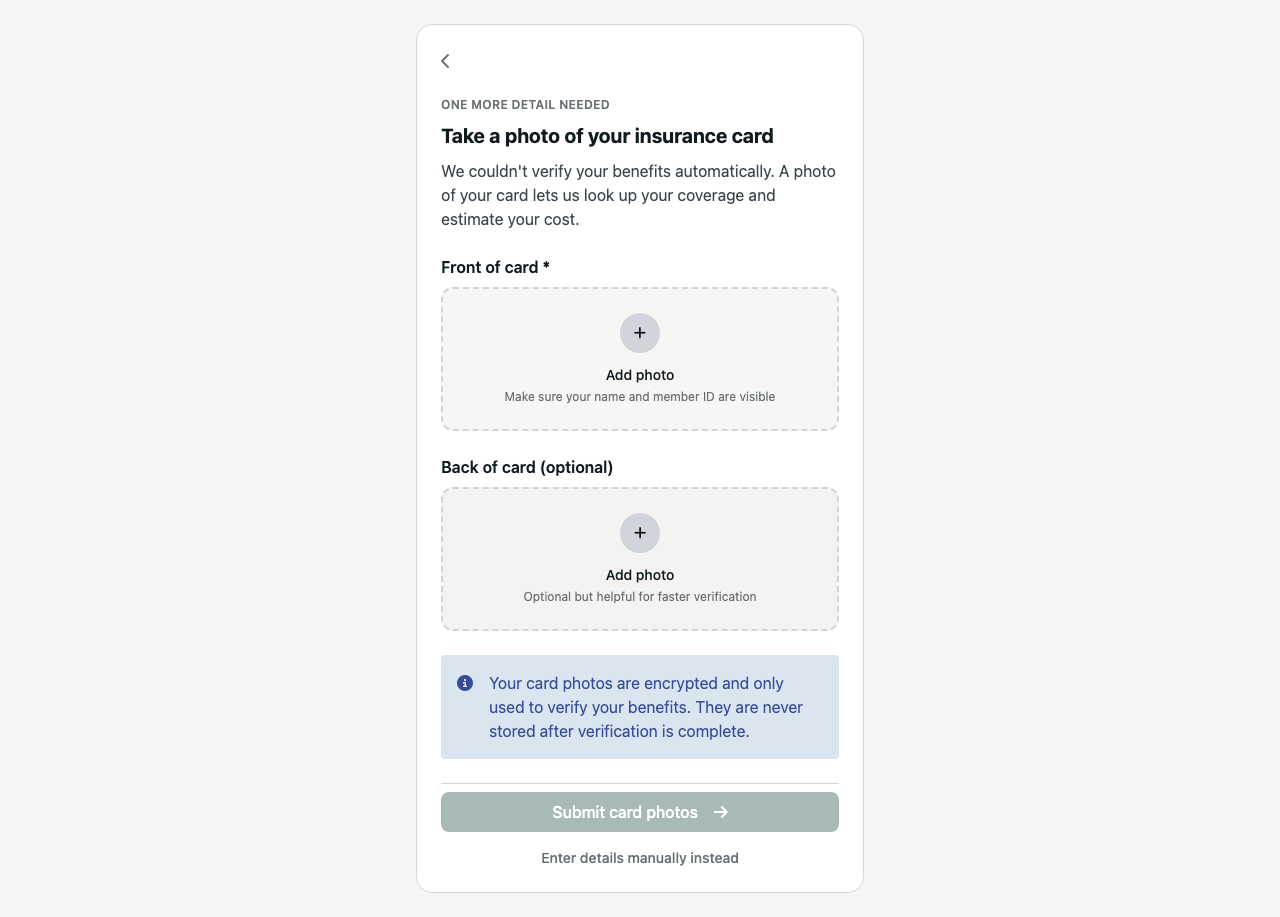
Insurance-card photo controls cannot be reached by keyboard

SeriousVerified
WCAG 1.3.1WCAG 2.1.1WCAG 2.5.3
Affected task
Upload insurance-card images
Functional ability
keyboard and speech-input operation
Environment / state
Local Chromium, React/Rails development build 7383dd338; insurance/card-upload

Reproduction

  1. Open insurance card upload.
  2. Tab from the preceding control through both visible upload targets.
  3. Compare visible card-side text with computed control names.

Observed

Both file inputs use `display: none`; the clickable labels are not focusable. A real Tab sequence skipped both upload controls. The visible “Front of card” and “Back of card (optional)” text sits outside each label and is absent from the input's accessible name.

Expected

Both uploads are keyboard operable and their names include the visible side/required context.

Impact

Keyboard users cannot upload insurance images and assistive-technology users do not receive the card-side or required-state context. Manual entry is available but does not make the upload function keyboard operable.

Recommended correction

Use a visually hidden, focusable file input or keyboard-operable button/label pattern; include side, required state, and helper text in the accessible relationship.

Verification

Tab to each upload, open the file chooser from the keyboard, and inspect names/descriptions.

Source ownership and locations

Owner/root cause: portal/app/components/onboarding-insurance-card-upload-screen.tsx:168-186

  • portal/app/components/onboarding-insurance-card-upload-screen.tsx:168-186
Insurance card upload controls

A11Y-006

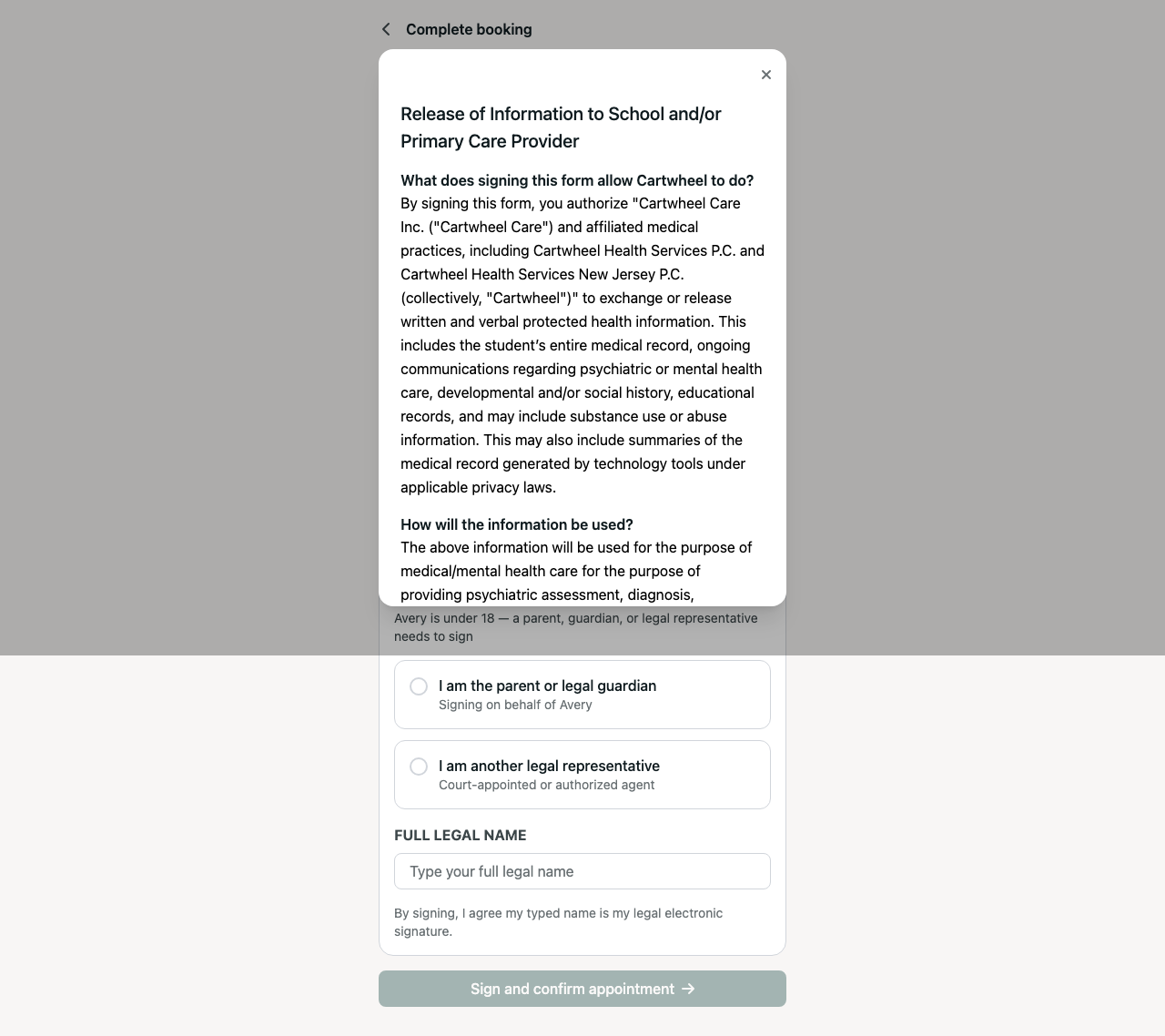
Legal-terms modal is an unnamed dialog

SeriousVerified
WCAG 4.1.2
Affected task
Read full legal consent terms
Functional ability
screen-reader dialog navigation
Environment / state
Local Chromium, React/Rails development build 7383dd338; consents legal-terms dialog

Reproduction

  1. Open optional consents.
  2. Activate Read full terms.
  3. Inspect the dialog role and computed name.

Observed

The accessibility tree exposed `dialog` with no name. The popup has no `Dialog.Title`, `aria-label`, or `aria-labelledby`.

Expected

The dialog has a visible, programmatically connected title and correct focus behavior.

Impact

Screen-reader users entering high-consequence legal text are not told what dialog opened.

Recommended correction

Add a visible `Dialog.Title` connected to the dialog. Give loading and failure replacements appropriate status semantics.

Verification

Confirm the dialog's computed accessible name; verify initial focus, Escape, focus containment, and focus restoration. Escape and restoration to “Read full terms” passed in this sample.

Source ownership and locations

Owner/root cause: portal/app/components/onboarding-consents-screen.tsx:251-287

  • portal/app/components/onboarding-consents-screen.tsx:251-287
Legal terms dialog without an accessible name

A11Y-007

SPA step changes discard focus and provide no new-view context

SeriousVerified
WCAG 2.4.3
Affected task
Move between onboarding steps and consent panels
Functional ability
keyboard and screen-reader orientation
Environment / state
Local Chromium, React/Rails development build 7383dd338; multiple SPA transitions and consent panels

Reproduction

  1. Activate Continue on representative route and internal panel transitions.
  2. After the new content settles, inspect document.activeElement and new-view announcement.

Observed

Welcome → identity, verification → concerns, and concerns → service line all left `document.activeElement` on `<body>` after the new view settled. Titles also remained empty.

Expected

Focus moves to a deliberate target and the new context is announced once.

Impact

Keyboard and screen-reader users lose their interaction point and receive no deterministic indication of the new step.

Recommended correction

Establish one route-change strategy that updates the localized title and moves focus to the new primary heading or a deliberate route-status target without causing duplicate announcements.

Verification

Test browser Back/Forward and every step transition with keyboard, VoiceOver/Safari, and NVDA/Chrome or Firefox.

Source ownership and locations

Owner/root cause: portal/app/routes/_client.onboarding.$signedId.tsx:5-36

  • portal/app/routes/_client.onboarding.$signedId.tsx:5-36
Identity verification page, initial state
Concern selection page, desktop

A11Y-008

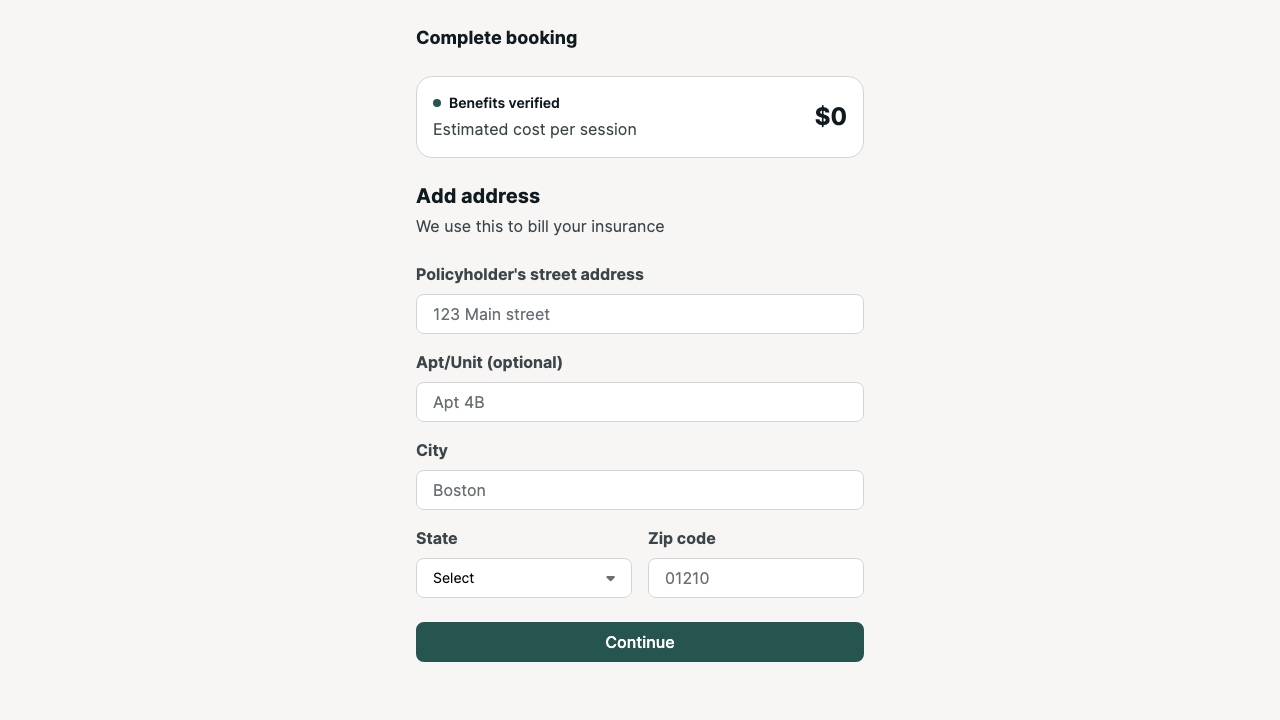
Address validation leaves focus on Continue and does not associate error help

ModerateVerified
WCAG 3.3.1WCAG 3.3.3WCAG 4.1.3
Affected task
Correct an invalid address submission
Functional ability
keyboard and screen-reader error recovery
Environment / state
Local Chromium, React/Rails development build 7383dd338; address invalid submission

Reproduction

  1. Open Address and submit all required fields empty.
  2. Inspect focus, field descriptions, and live regions.

Observed

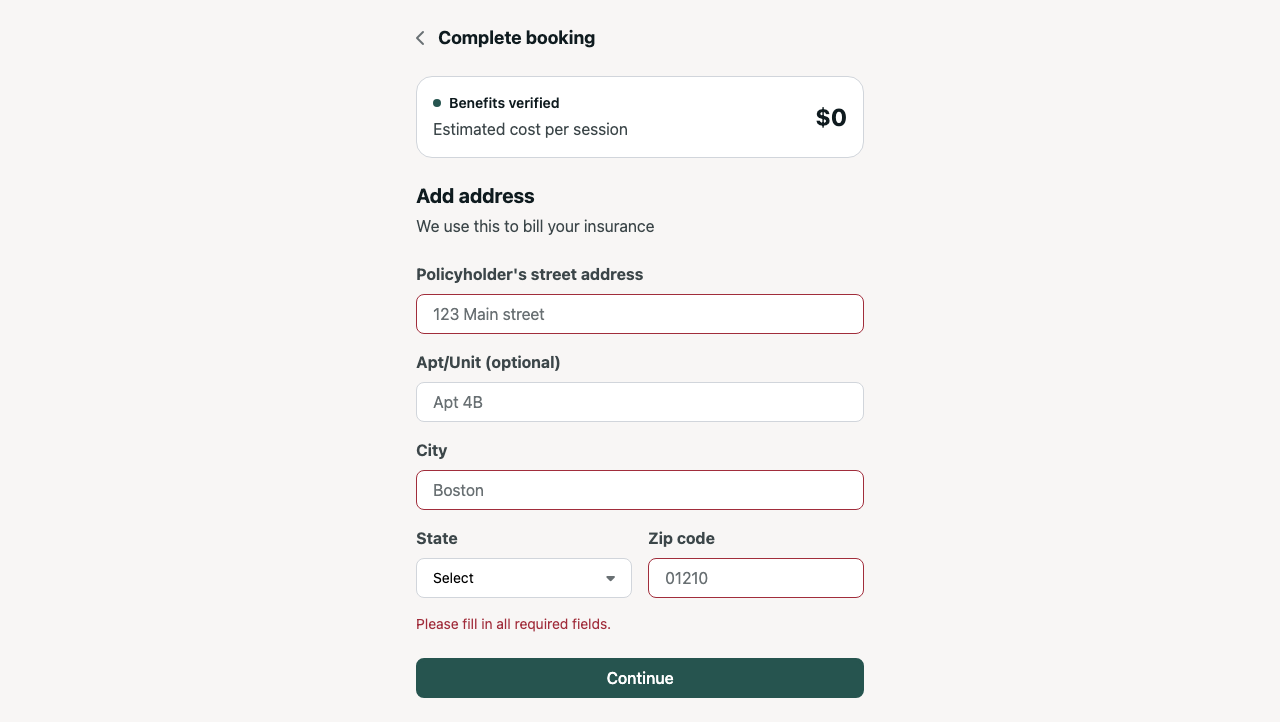
Empty submit marked fields `aria-invalid="true"` but left focus on Continue. The generic “Please fill in all required fields” paragraph had no live-region semantics and was not referenced by any field through `aria-describedby`. No field-specific correction was exposed.

Expected

Submission identifies and associates each error, announces failure, and focuses a useful error target.

Impact

Users must rediscover all failed fields; screen-reader users may not hear that submission failed.

Recommended correction

Provide field-associated errors, announce or focus an error summary, and move focus to the summary or first invalid control after submit.

Verification

Submit combinations of missing and malformed values and verify focus, announcement, associations, and value preservation.

Source ownership and locations

Owner/root cause: portal/app/components/onboarding-address-screen.tsx:140-158

  • portal/app/components/onboarding-address-screen.tsx:140-158
  • portal/app/components/onboarding-address-screen.tsx:202-218
Address form after empty submission

A11Y-009

Invalid or expired links produce a terminal with no heading

ModerateVerified
WCAG 1.3.1
Affected task
Recover from an invalid or expired link
Functional ability
heading navigation and comprehension
Environment / state
Local Chromium, React/Rails development build 7383dd338; invalid-link terminal

Reproduction

  1. Open an invalid signed-link state.
  2. Inspect the title, landmarks, and heading outline.

Observed

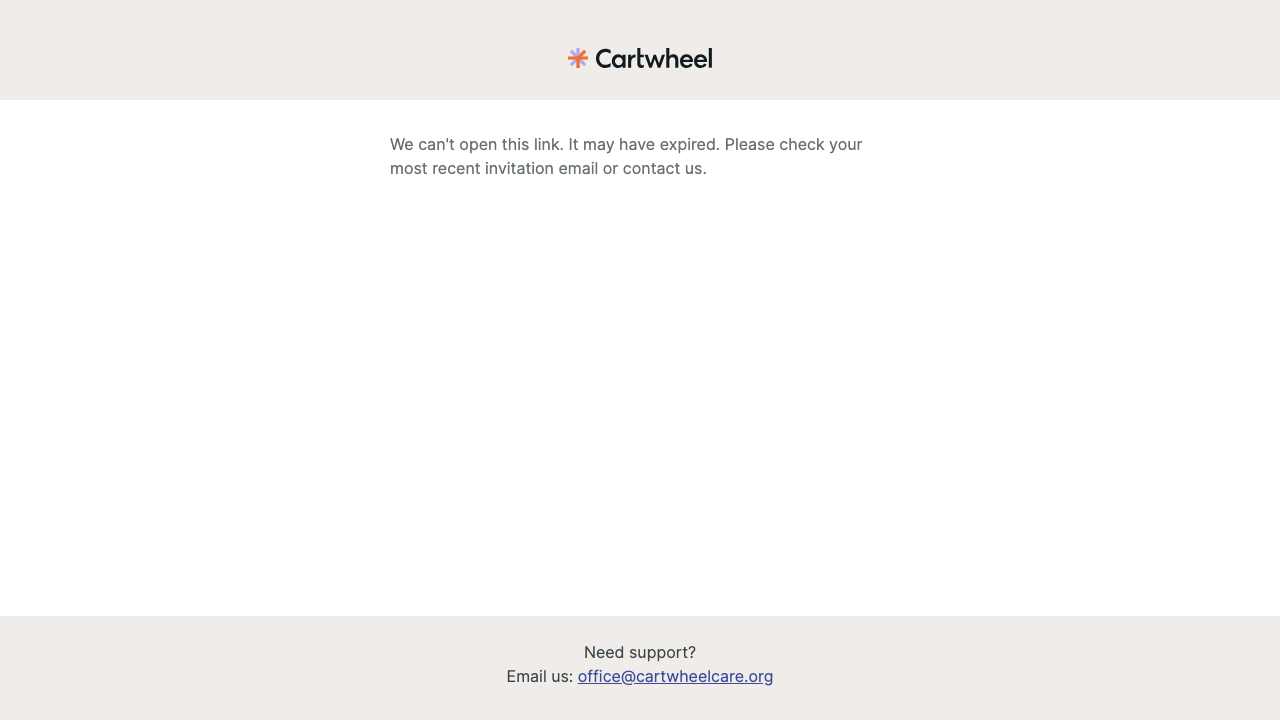
The invalid-link state contained only paragraphs and links: no `h1`–`h6`, main landmark, or document title.

Expected

The terminal has a descriptive title, primary heading, and understandable recovery path.

Impact

Heading navigation cannot locate or identify the terminal error, and the page lacks a concise programmatic statement of purpose.

Recommended correction

Render a clear `h1`, useful recovery copy, and a descriptive document title.

Verification

Inspect invalid, expired, and feature-disabled variants.

Source ownership and locations

Owner/root cause: portal/app/components/onboarding-error-screen.tsx:19-29

  • portal/app/components/onboarding-error-screen.tsx:19-29
Invalid or expired onboarding-link terminal

A11Y-010

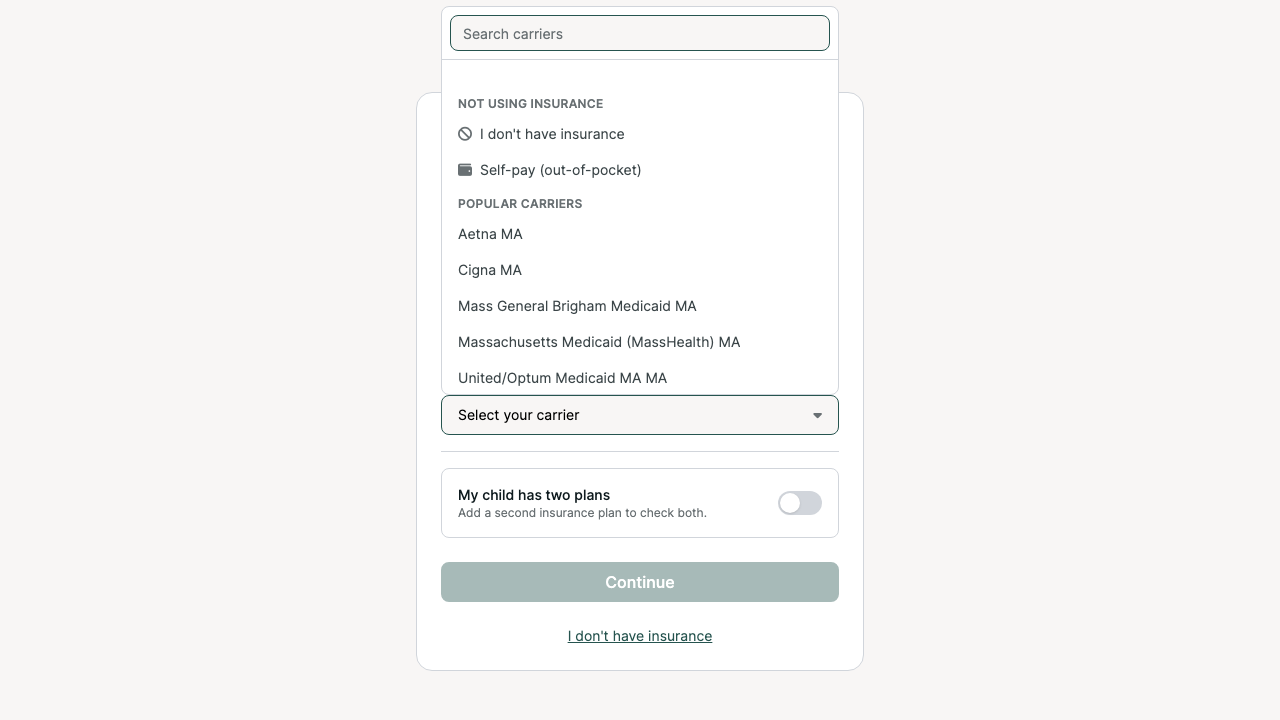
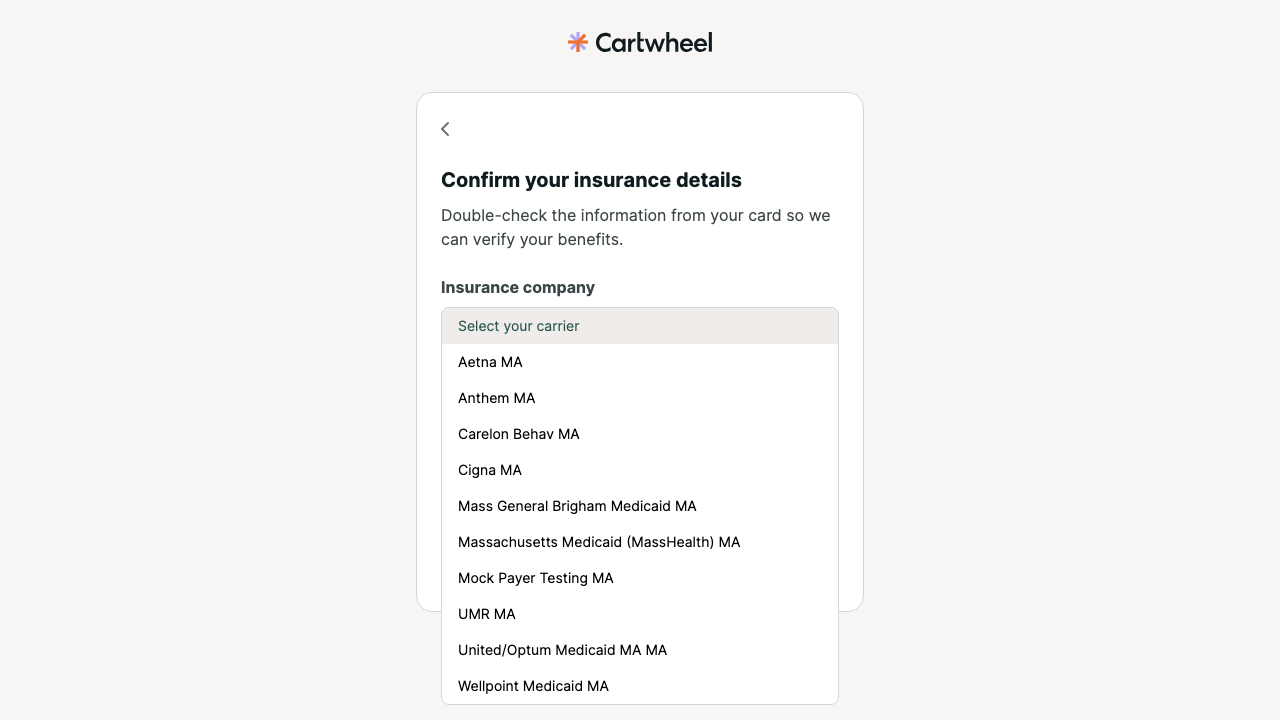
Insurance carrier search opens an unnamed dialog

SeriousVerified
WCAG 4.1.2
Affected task
Choose an insurance carrier or matching specialty
Functional ability
screen-reader popup navigation
Environment / state
Local Chromium, React/Rails development build 7383dd338; insurance carrier and matching specialty popups

Reproduction

  1. Open the carrier search and matching Specialty filter.
  2. Inspect each popup role and computed name.

Observed

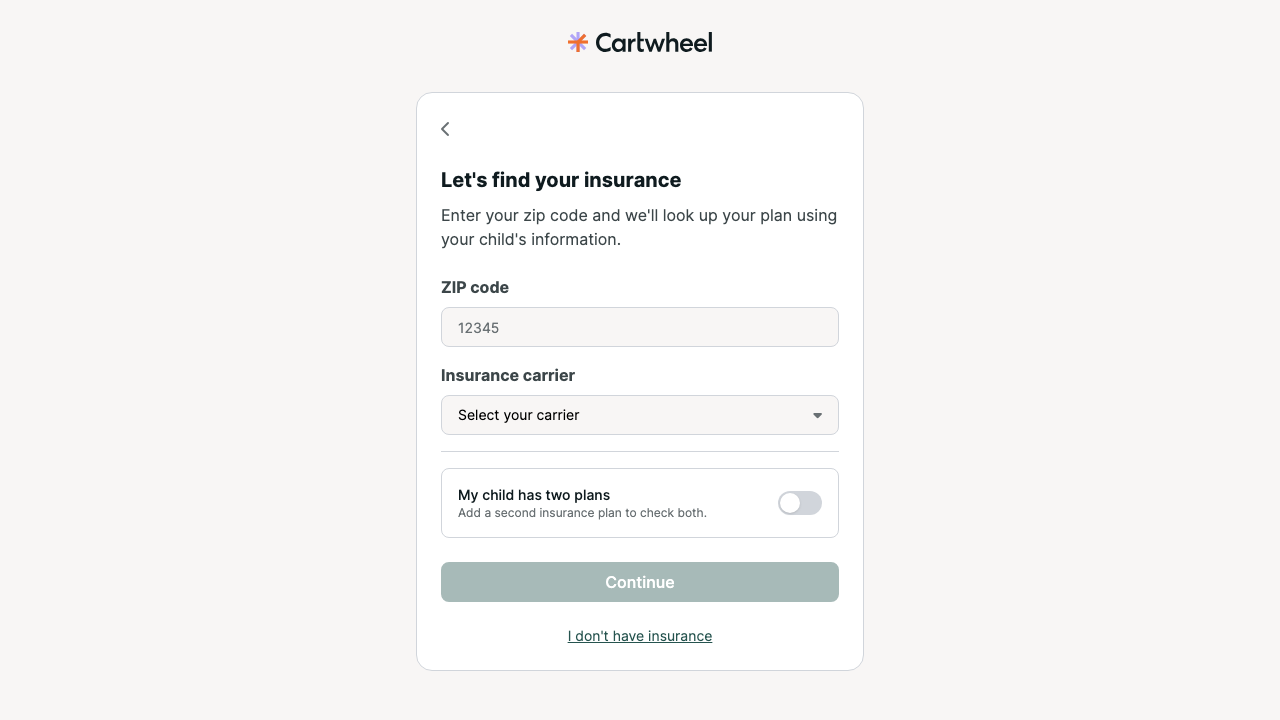
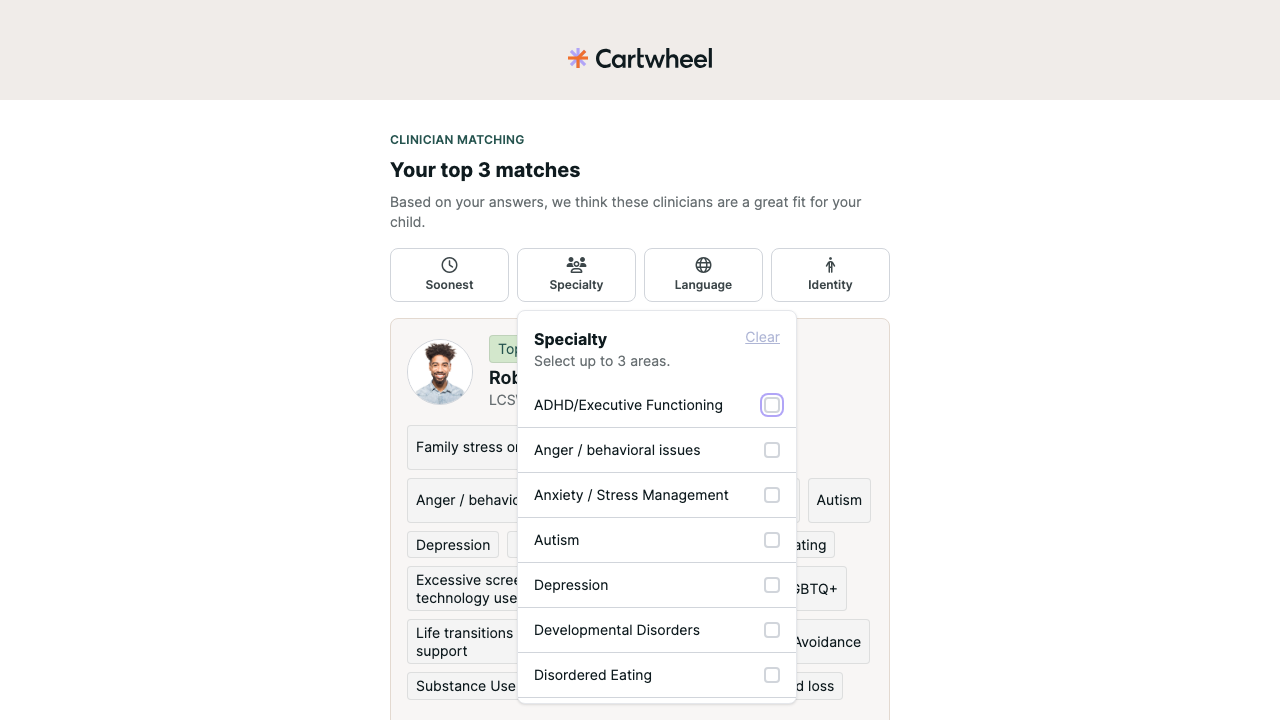
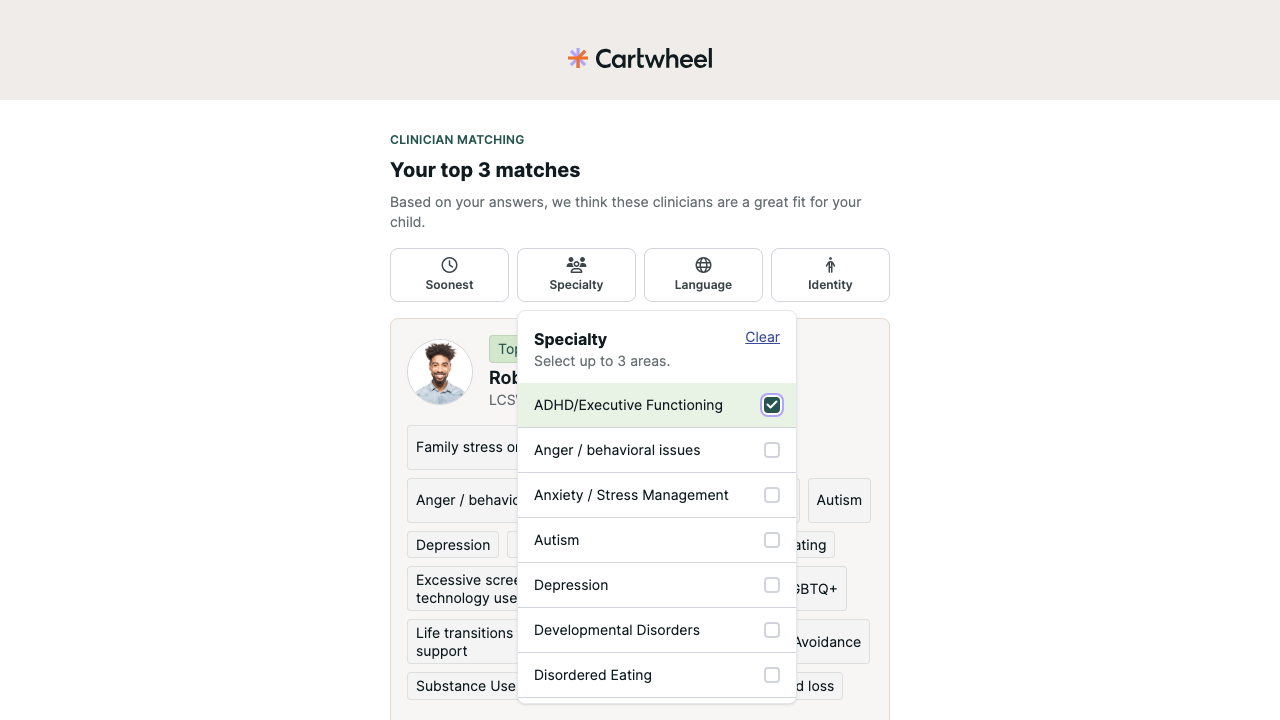
Opening “Insurance carrier” exposed a popup with `role="dialog"` and no `aria-label` or `aria-labelledby`. The search combobox inside was named, but the containing dialog was not.

Expected

Every dialog popup has a name derived from its visible heading or field label.

Impact

Screen-reader users are not given a programmatic name for the popup context they enter.

Recommended correction

Give the popup a visible or programmatic name derived from its field label, while preserving the names and relationships of the trigger, search input, and listbox.

Verification

Inspect every shared `SearchableSelect` usage and verify popup naming, Escape, keyboard selection, and focus restoration with AT.

Source ownership and locations

Owner/root cause: packages/components/src/forms-v2/search-select.tsx:115-155

  • packages/components/src/forms-v2/search-select.tsx:115-155
Open carrier-search popup without a dialog name

A11Y-011

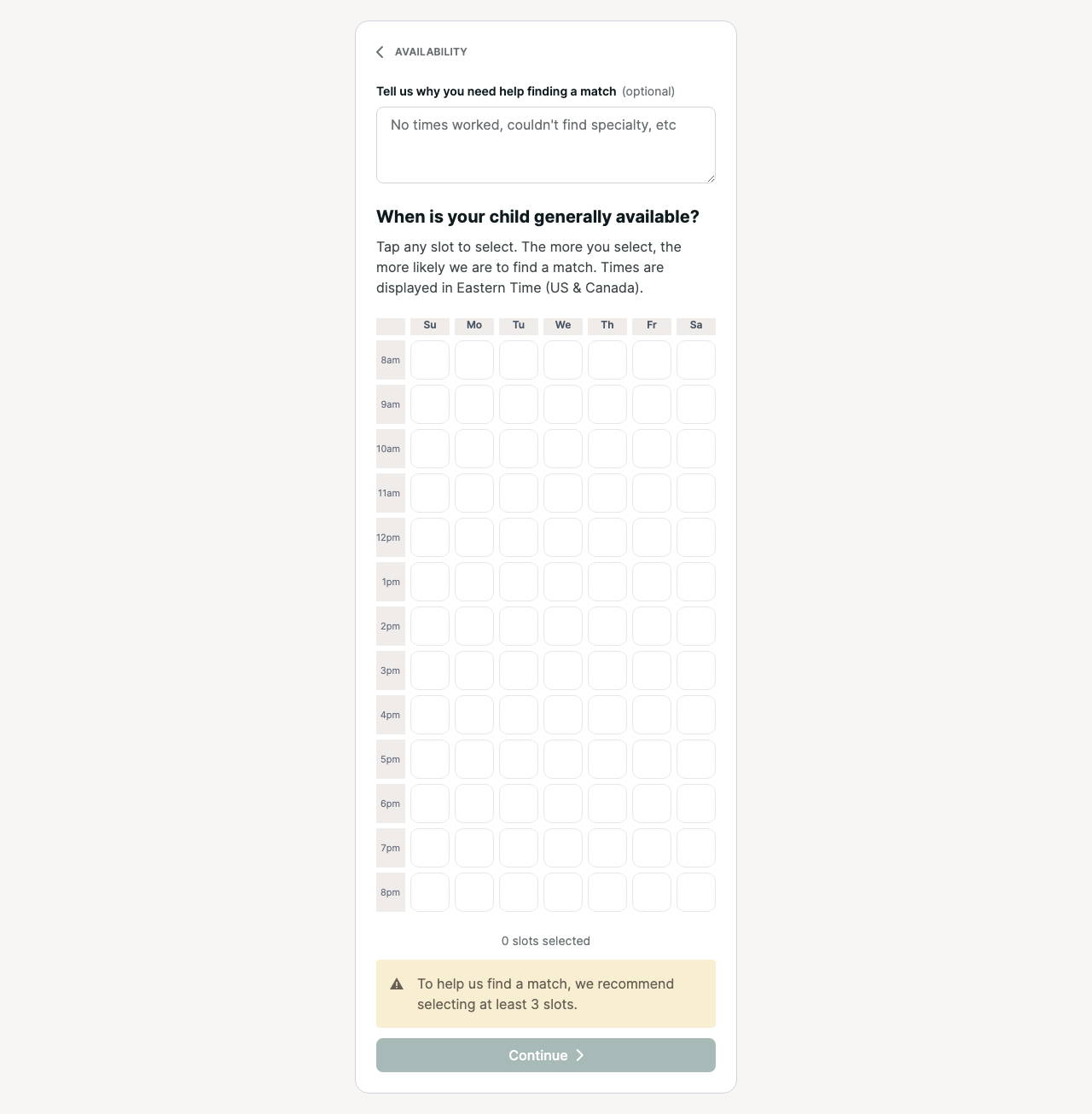
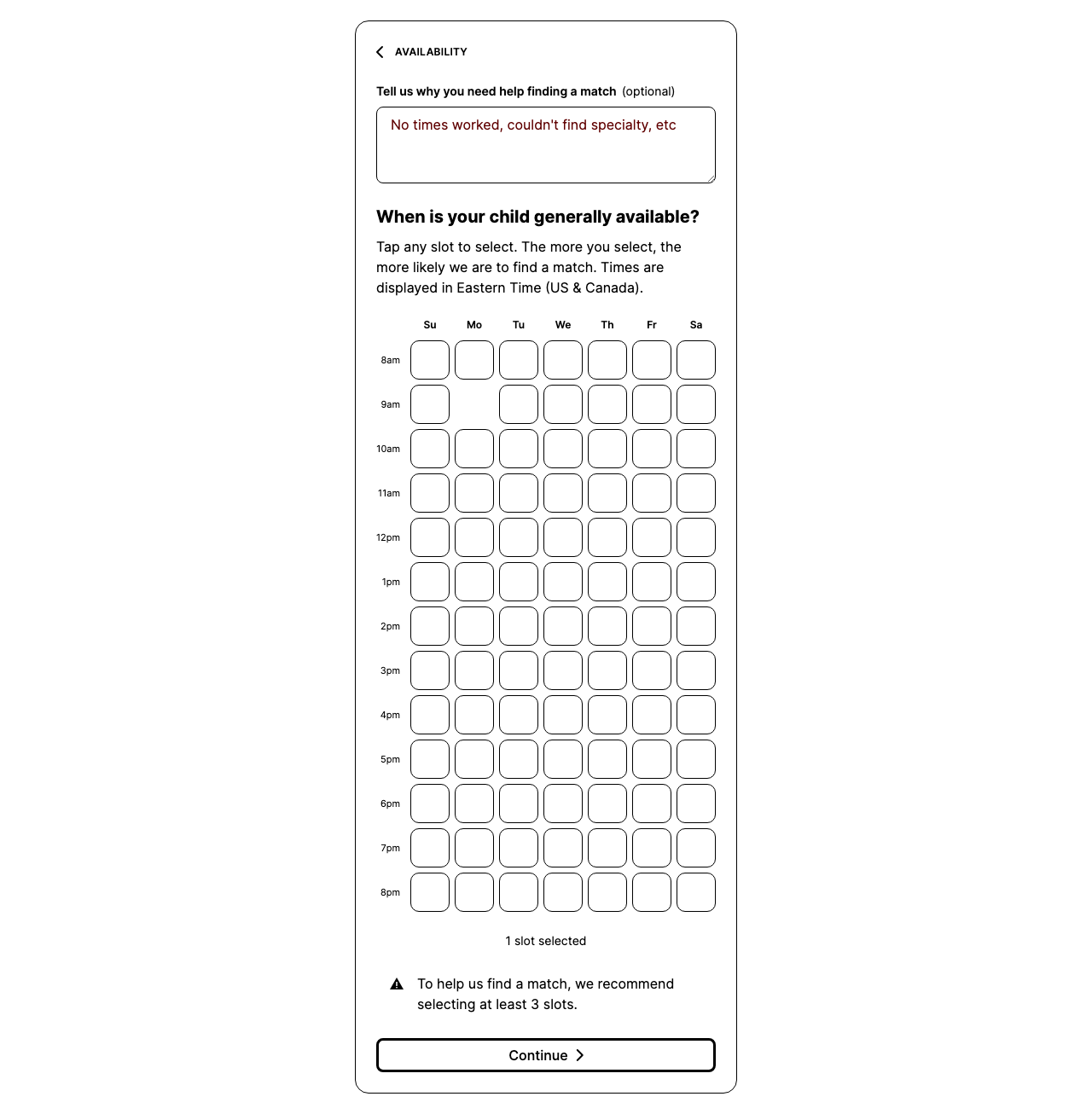
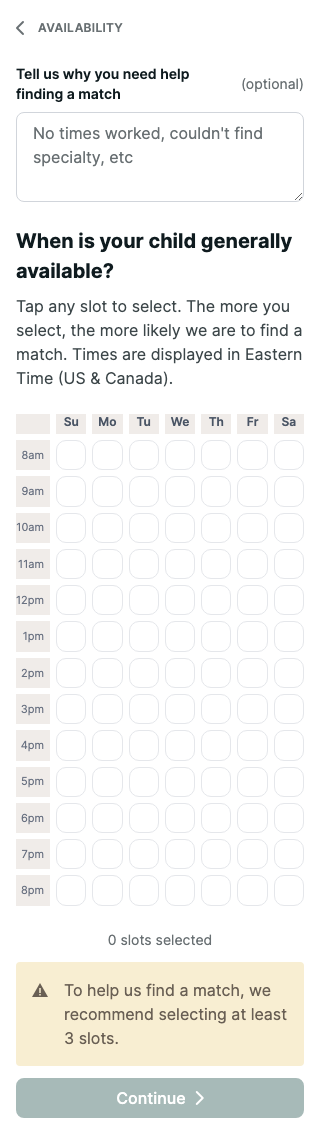
Availability cells lose their focus indicator in forced-colors mode

SeriousVerified
WCAG 2.4.7
Affected task
Choose waitlist availability in forced colors
Functional ability
keyboard and low-vision operation
Environment / state
Local Chromium, React/Rails development build 7383dd338; waitlist under forced colors

Reproduction

  1. Enable forced-colors mode.
  2. Tab to a waitlist time cell and select it.
  3. Inspect computed outline, box-shadow, border, and selected state.

Observed

A focused waitlist availability cell computed to `outline: none` and `box-shadow: none` in Chromium forced-colors mode because the implementation removes the outline and relies on a Tailwind ring. The grid places all 91 cells in the Tab order.

Expected

Focused cells retain a visible system-color indicator and selected state.

Impact

Keyboard users with Windows High Contrast or another forced-colors configuration cannot reliably see which time slot has focus; reaching controls after the grid also requires excessive tabbing.

Recommended correction

Preserve a system-color outline under forced colors. Consider a composite grid or roving-tabindex interaction so arrow keys traverse cells while the grid contributes one Tab stop.

Verification

Check selected and unselected cells with keyboard in Windows High Contrast themes and standard color modes.

Source ownership and locations

Owner/root cause: packages/components/src/weekly-availability-grid.tsx:107-126

  • packages/components/src/weekly-availability-grid.tsx:107-126
Waitlist availability grid with 91 time-slot buttons
Selected and focused waitlist slot in forced-colors mode
Waitlist availability grid at 320 CSS px

A11Y-012

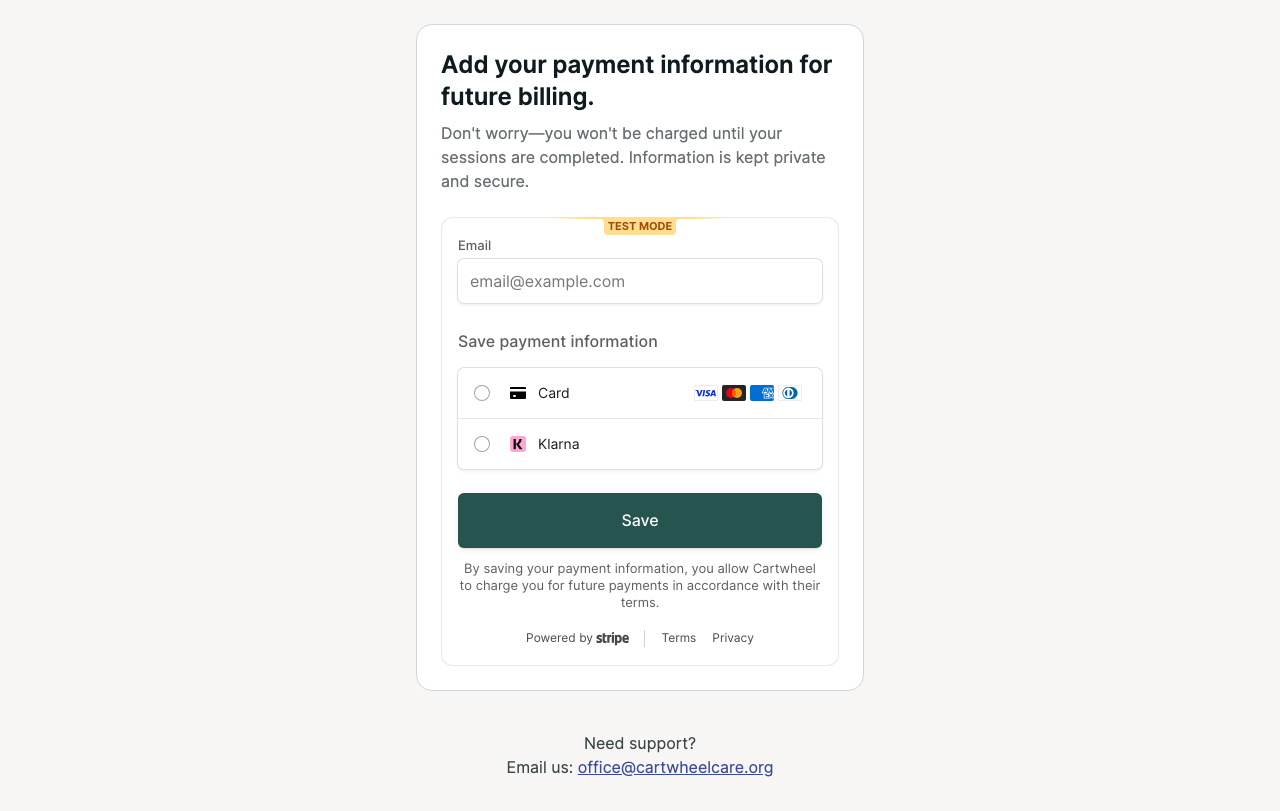
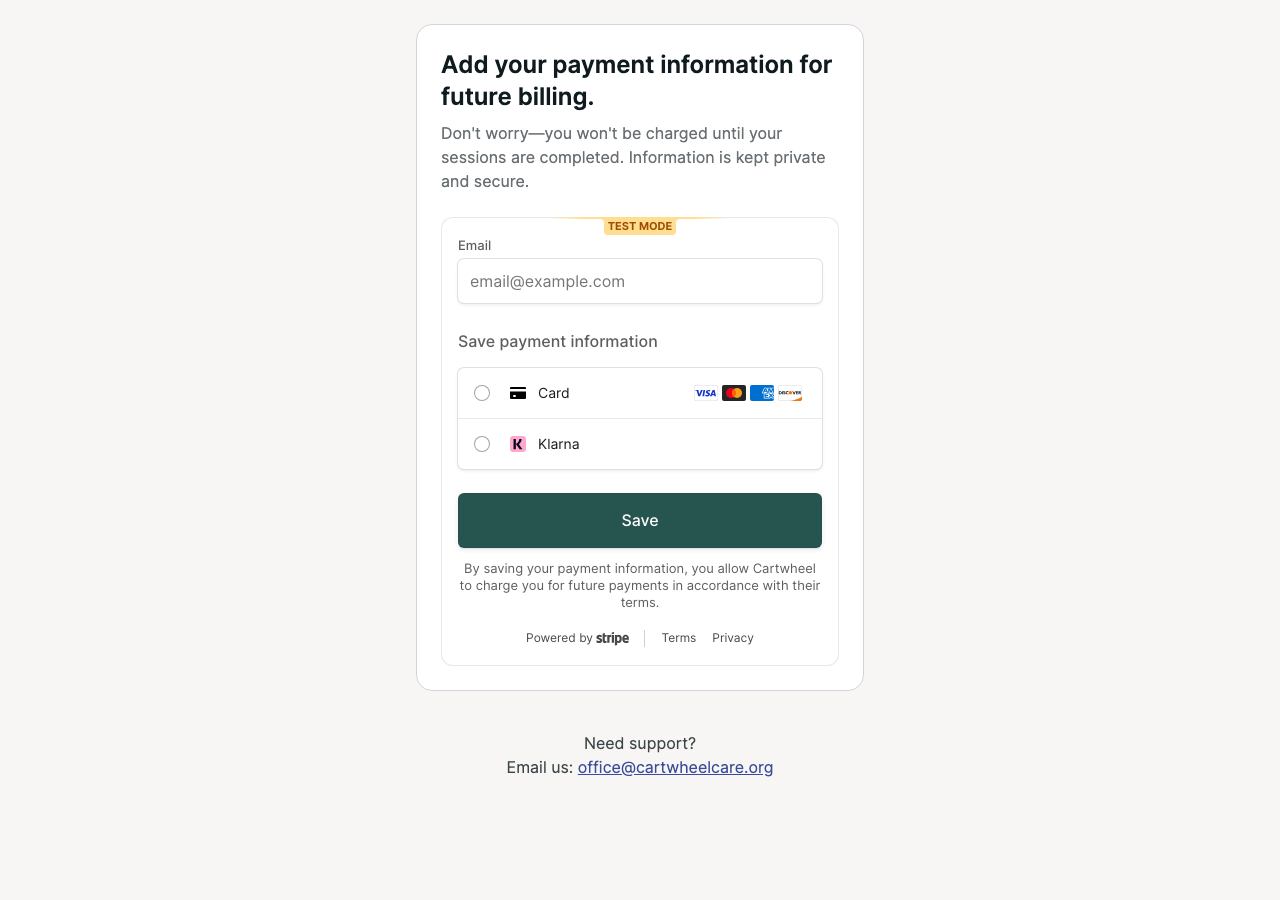
Payment handoff page has no declared language

SeriousVerified
WCAG 3.1.1
Affected task
Enter payment information
Functional ability
screen-reader pronunciation
Environment / state
Local Chromium, React/Rails development build 7383dd338; Rails payment host

Reproduction

  1. Navigate from React onboarding to the Rails payment host.
  2. Inspect the host html lang and the Stripe iframe language.

Observed

The Rails-rendered payment host page had no `lang` attribute on `<html>`. Axe reported `html-has-lang`. Stripe's embedded document separately declared `lang="en"`.

Expected

Host and embedded documents declare the resolved locale.

Impact

Assistive technology cannot reliably select the correct language rules for Cartwheel's payment instructions surrounding the embedded checkout.

Recommended correction

Set the payment layout's document language from the resolved locale and preserve language across the React-to-Rails handoff.

Verification

Assert the host and embedded-document language for English, Spanish, and Portuguese payment routes.

Source ownership and locations

Owner/root cause: Shared onboarding document/layout

    Cartwheel payment host and embedded Stripe handoff
    Cartwheel payment host and embedded Stripe handoff
    Loaded Stripe embedded checkout, desktop
    Loaded Stripe embedded checkout, desktop

    A11Y-013

    Payment handoff has a generic document title

    SeriousVerified
    WCAG 2.4.2
    Affected task
    Identify the payment step
    Functional ability
    screen-reader and browser-tab orientation
    Environment / state
    Local Chromium, React/Rails development build 7383dd338; Rails payment host

    Reproduction

    1. Open the payment handoff.
    2. Inspect the host document title.

    Observed

    The payment host page title was only “Cartwheel,” despite the page purpose being payment-information collection.

    Expected

    The title identifies Cartwheel and the payment-information step.

    Impact

    Browser tabs, history, and assistive-technology page lists do not identify this onboarding step.

    Recommended correction

    Provide a localized title that identifies both Cartwheel and the payment-information step.

    Verification

    Assert the exact host-page title in each supported locale.

    Source ownership and locations

    Owner/root cause: Shared onboarding document/layout

      Cartwheel payment host and embedded Stripe handoff
      Cartwheel payment host and embedded Stripe handoff

      A11Y-014

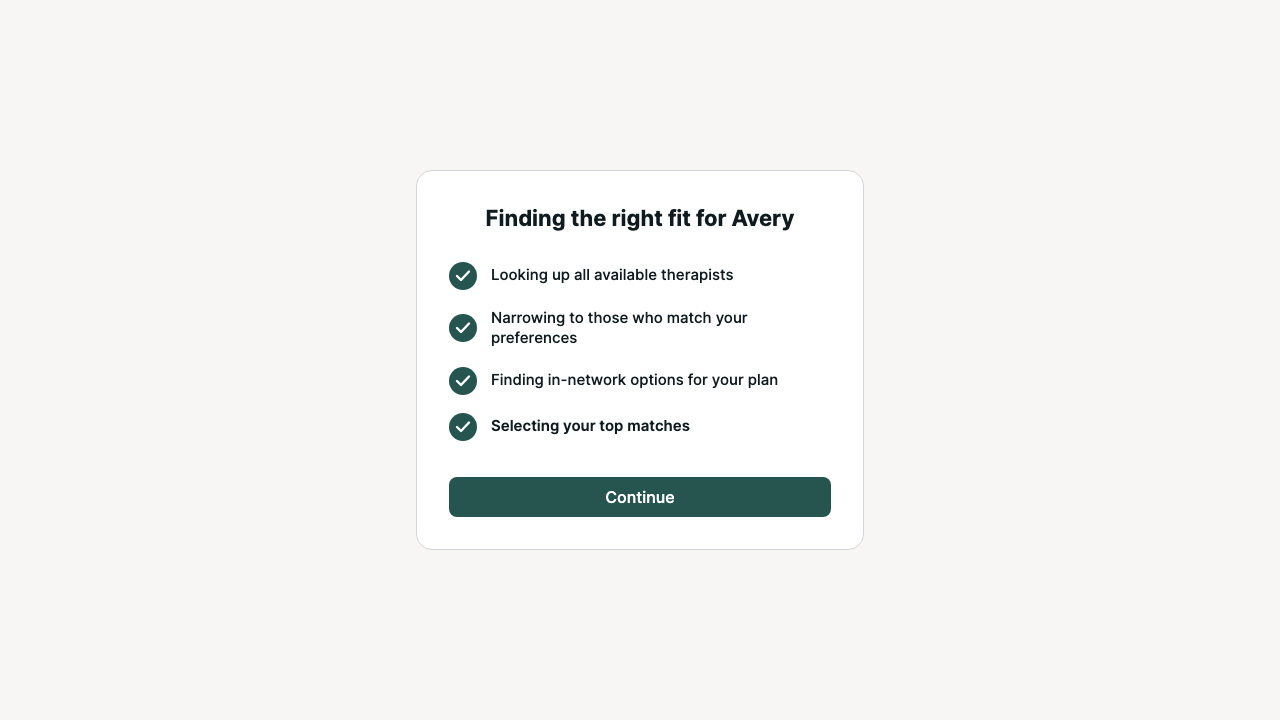
      Match-search progress exposes contradictory states and does not announce completion

      SeriousVerified
      WCAG 1.3.1WCAG 4.1.2WCAG 4.1.3
      Affected task
      Wait for clinician matching results
      Functional ability
      screen-reader status monitoring
      Environment / state
      Local Chromium, React/Rails development build 7383dd338; finding-matches

      Reproduction

      1. Open Finding matches.
      2. Inspect the full accessibility tree during and after the animation.
      3. Observe whether completion and Continue availability are announced.

      Observed

      Completed checklist rows simultaneously exposed images named “Loading” and “Done” because CSS opacity and animation changed only the visual presentation. The active row later changed visually and a Continue button appeared, but the checklist had no live or status semantics. The hardcoded English image labels were also exposed in localized flows.

      Expected

      Each row exposes one current state and completion is announced concisely once.

      Impact

      Screen-reader users receive contradictory progress states and may not be told when matching is ready or when a new action becomes available.

      Recommended correction

      Represent each row with one programmatic status at a time, hide replaced decorative graphics, localize any meaningful state labels, and announce concise progress/completion without replaying the whole checklist.

      Verification

      Observe the complete success, delayed, fallback, and error sequences with VoiceOver and NVDA; ensure each stage has one current state and completion is announced once.

      Source ownership and locations

      Owner/root cause: portal/app/components/onboarding-finding-matches-screen.tsx:90-219

      • portal/app/components/onboarding-finding-matches-screen.tsx:90-219
      • portal/app/components/onboarding-finding-matches-screen.tsx:240-280
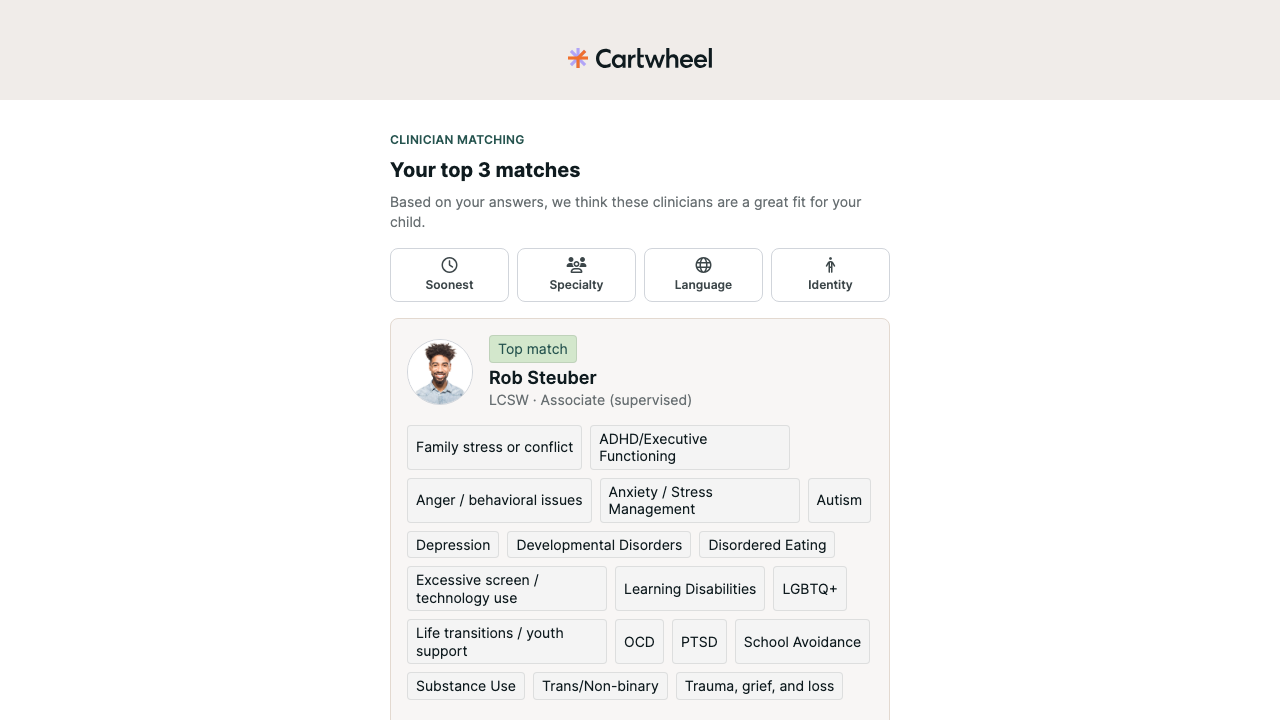
      Finding-matches checklist with visual progress animation
      Finding-matches checklist with visual progress animation

      A11Y-015

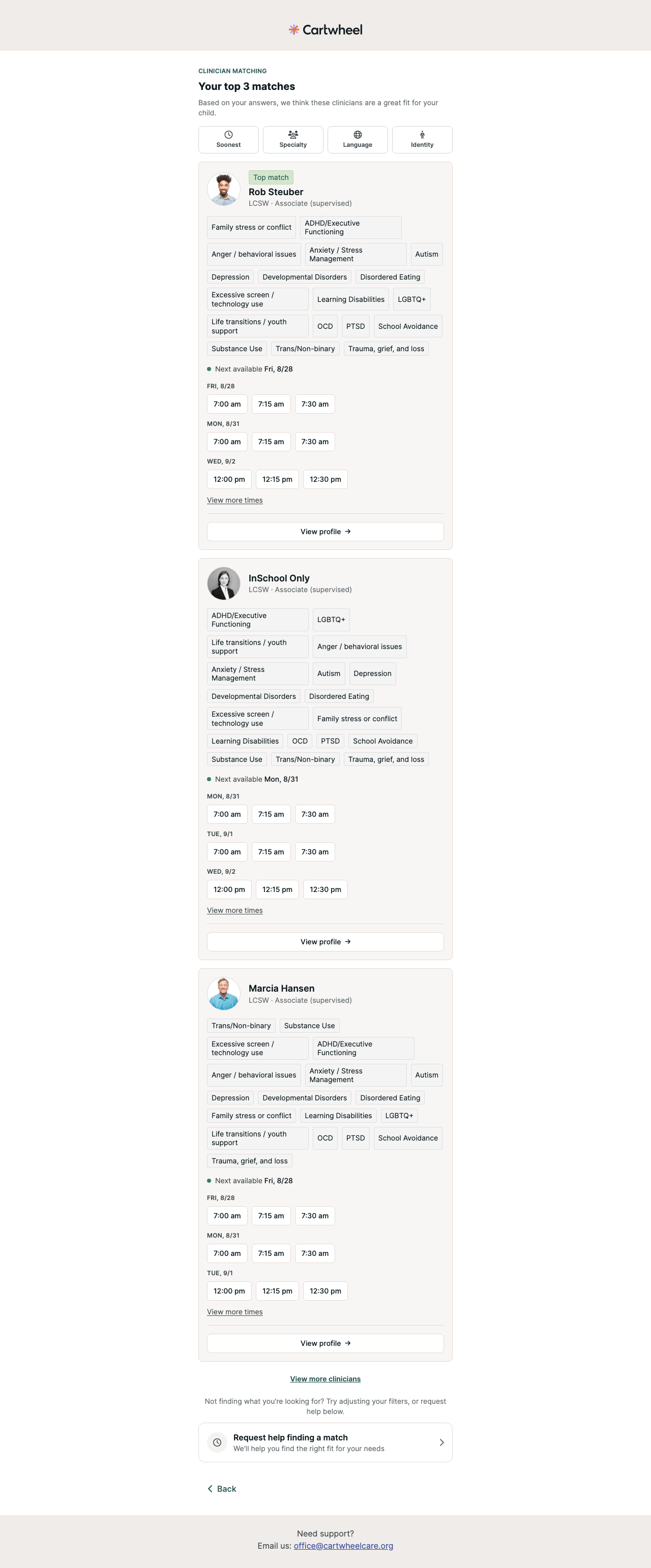
      Appointment time controls omit date, clinician, and selected-state context

      SeriousVerified
      WCAG 1.3.1WCAG 4.1.2
      Affected task
      Select and confirm an appointment time
      Functional ability
      screen-reader form navigation
      Environment / state
      Local Chromium, React/Rails development build 7383dd338; matching and schedule

      Reproduction

      1. Open matching results and navigate by buttons.
      2. Open one clinician schedule with a selected slot.
      3. Inspect each time name, grouping, and selected state.

      Observed

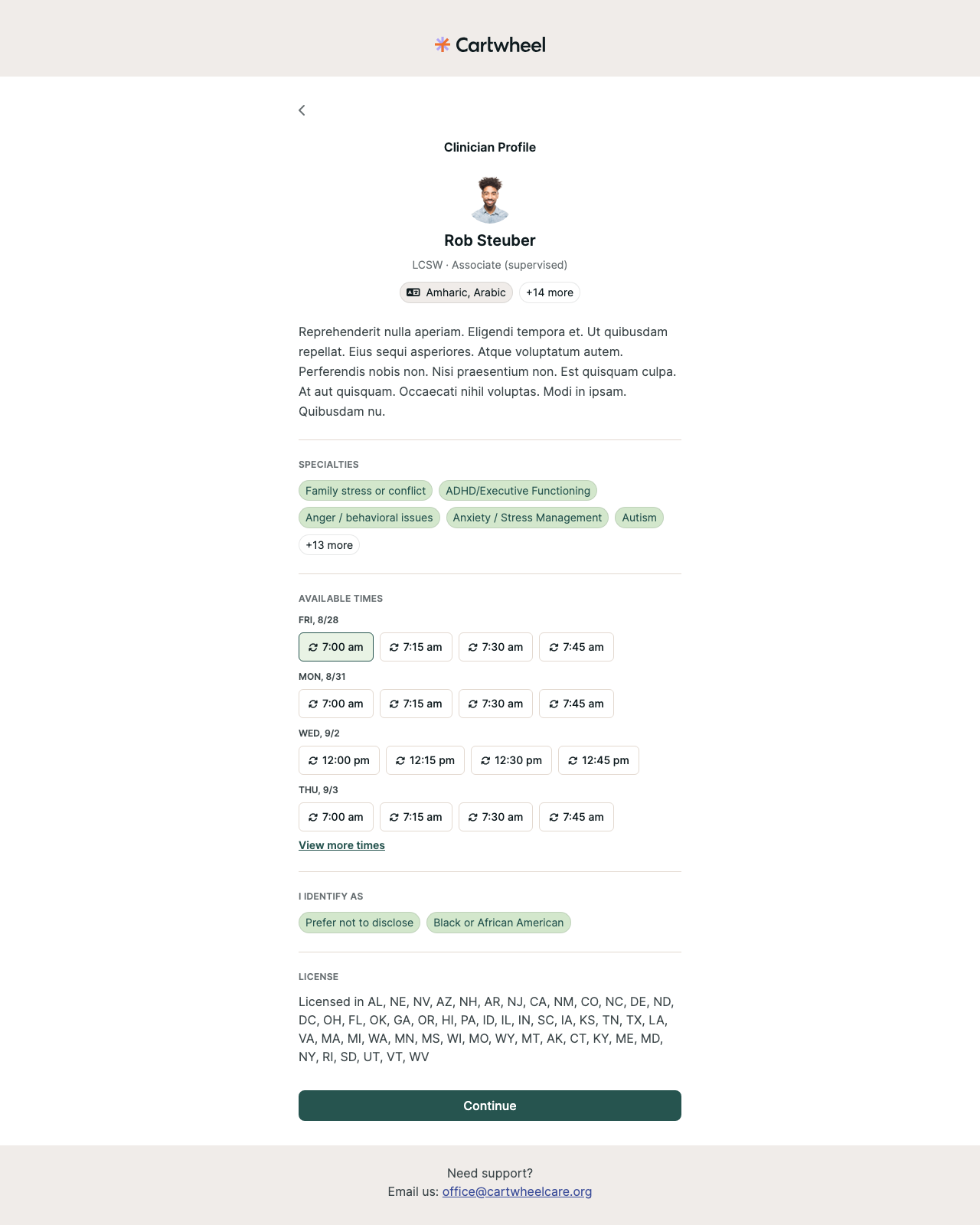
      Matching results exposed many repeated buttons named only “7:00 am,” “7:15 am,” and similar values without a programmatic relationship to the visual clinician card or date label. On the clinician schedule, a preselected time changed only border/background classes; it exposed no `aria-pressed`, `aria-checked`, or equivalent selected state.

      Expected

      Every time has unique date/clinician context and the current selection is programmatically exposed.

      Impact

      Screen-reader button navigation cannot distinguish appointment choices, and users cannot determine which date/time is currently selected before continuing.

      Recommended correction

      Give each time control a name or description containing the full date and relevant clinician context, group controls under programmatic date/clinician labels, and expose selection with a standard radio or toggle pattern.

      Verification

      Navigate matching and schedule controls by buttons, groups, and form controls in VoiceOver and NVDA; confirm every choice is unique and the selected slot is announced.

      Source ownership and locations

      Owner/root cause: packages/components/src/clinician-available-times.tsx:32-57

      • packages/components/src/clinician-available-times.tsx:32-57
      • packages/components/src/time-chip.tsx:20-39
      Matching results with repeated time-only appointment buttons
      Matching results with repeated time-only appointment buttons
      Clinician schedule with a visually selected time and profile disclosures
      Clinician schedule with a visually selected time and profile disclosures

      A11Y-016

      Clinician-profile disclosure controls have ambiguous names and no expanded state

      ModerateVerified
      WCAG 2.4.6WCAG 4.1.2
      Affected task
      Expand clinician languages and specialties
      Functional ability
      screen-reader button navigation
      Environment / state
      Local Chromium, React/Rails development build 7383dd338; schedule clinician profile

      Reproduction

      1. Open a clinician profile.
      2. Inspect +N more and Show less names/states before and after activation.

      Observed

      Language and specialty disclosures were named only “+14 more,” “+13 more,” or “Show less.” They exposed no `aria-expanded` or `aria-controls`, and repeated “Show less” labels did not identify which content would collapse.

      Expected

      Each disclosure names its content, exposes expanded state, and references its controlled region.

      Impact

      Screen-reader users navigating by buttons cannot identify the disclosure's purpose or determine whether its related content is expanded.

      Recommended correction

      Include the controlled content in each accessible name, expose `aria-expanded`, and connect each button to a stable content container with `aria-controls`.

      Verification

      Expand and collapse languages and specialties with keyboard and screen reader; confirm purpose, state, and controlled region are announced.

      Source ownership and locations

      Owner/root cause: portal/app/routes/_client.onboarding.$signedId.schedule.$clinicianId/route.tsx:348-425

      • portal/app/routes/_client.onboarding.$signedId.schedule.$clinicianId/route.tsx:348-425
      • packages/components/src/badge.tsx
      Clinician schedule with a visually selected time and profile disclosures
      Clinician schedule with a visually selected time and profile disclosures

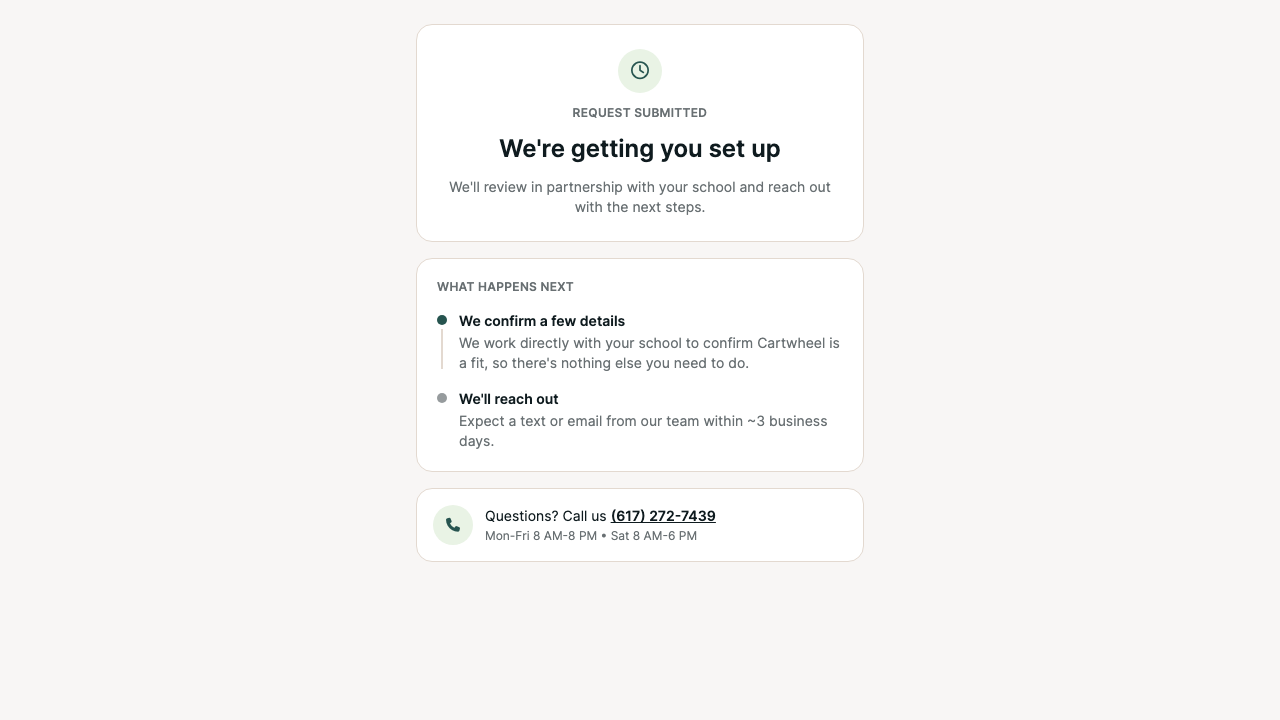
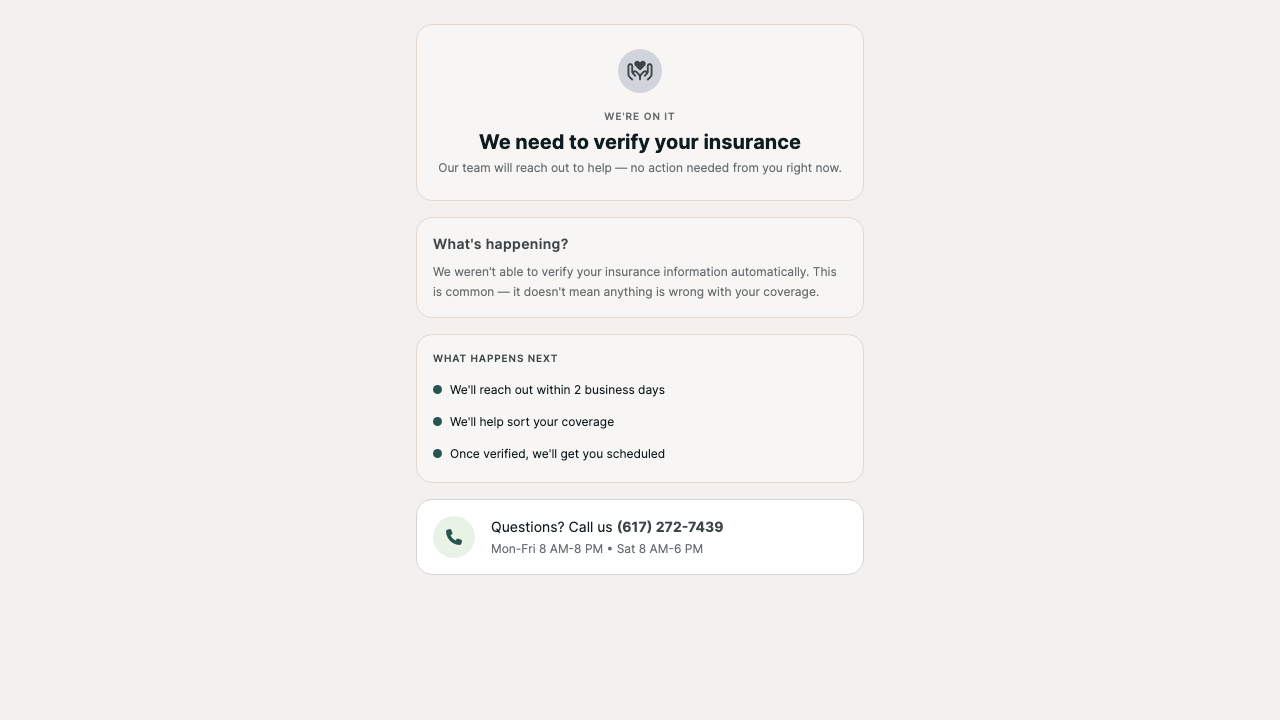
      A11Y-017

      Shared wizard pages can begin at heading level 2

      ModerateVerified
      WCAG 1.3.1
      Affected task
      Understand booking and pending terminal structure
      Functional ability
      heading and landmark navigation
      Environment / state
      Local Chromium, React/Rails development build 7383dd338; confirm and pending terminals

      Reproduction

      1. Open booking confirmation and representative pending terminals.
      2. Inspect h1/h2 outline and main landmarks.

      Observed

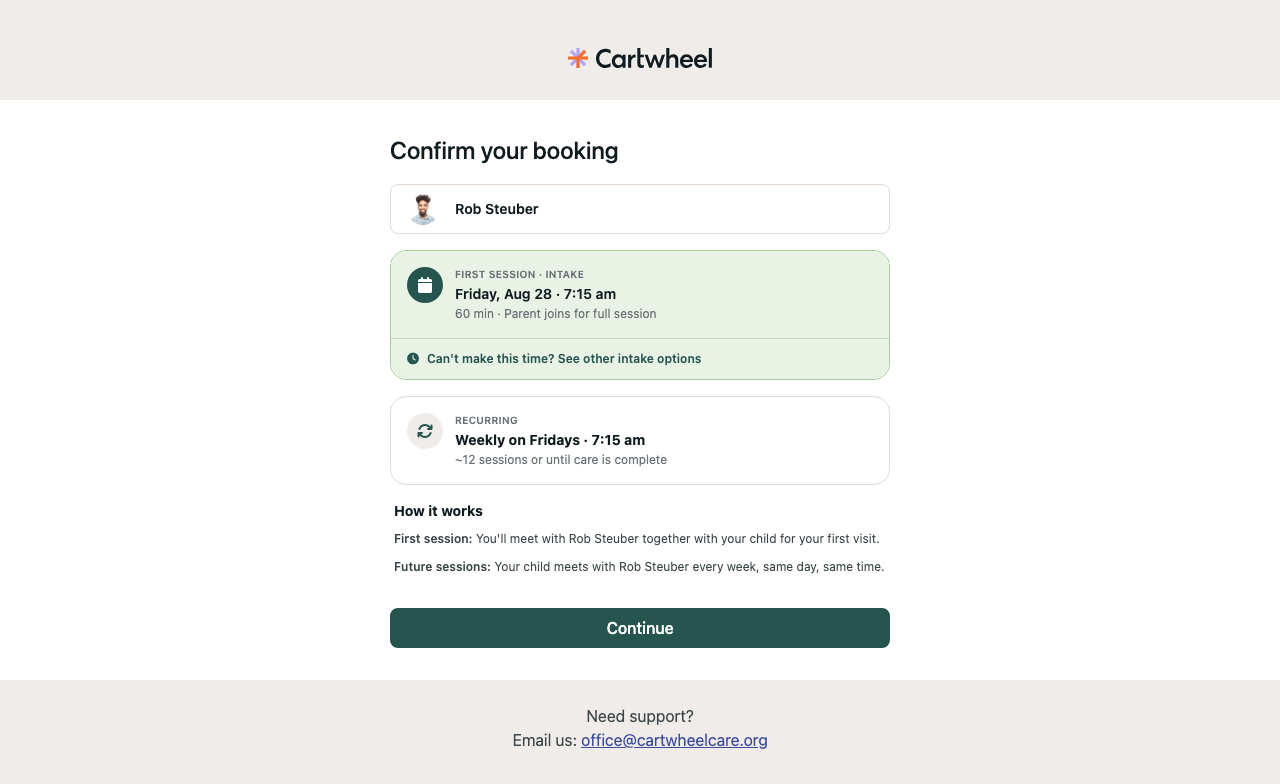
      “Confirm your booking” was the page's primary heading but rendered as `h2`; the page contained no `h1`. “How it works” was another `h2`, making both appear as peer sections rather than exposing the first as the page title. The shared wizard layout also provided no `main` landmark.

      Expected

      Each page starts with one semantic h1 and nests subsection headings under it.

      Impact

      Heading navigation communicates a misleading document hierarchy and makes the primary purpose less predictable.

      Recommended correction

      Let each route supply a semantic `h1` for its page title and use lower levels only for subsections. Add one `main` landmark around the primary page content.

      Verification

      Inspect heading outlines and landmarks for every route using the shared wizard layout, including terminal and error states.

      Source ownership and locations

      Owner/root cause: packages/components/src/layouts/wizard-page.tsx:39-60

      • packages/components/src/layouts/wizard-page.tsx:39-60
      Booking confirmation beginning with an h2 and no h1
      Booking confirmation beginning with an h2 and no h1
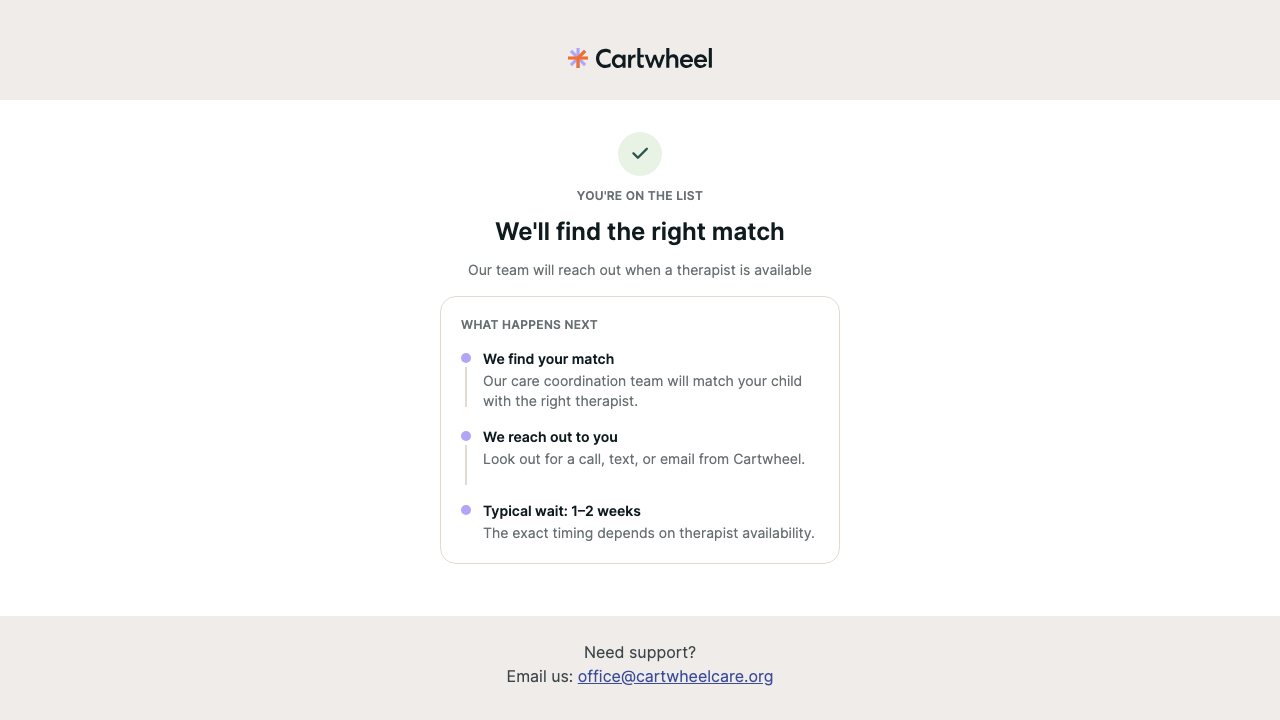
      Waitlist confirmation terminal beginning at heading level 2
      Waitlist confirmation terminal beginning at heading level 2
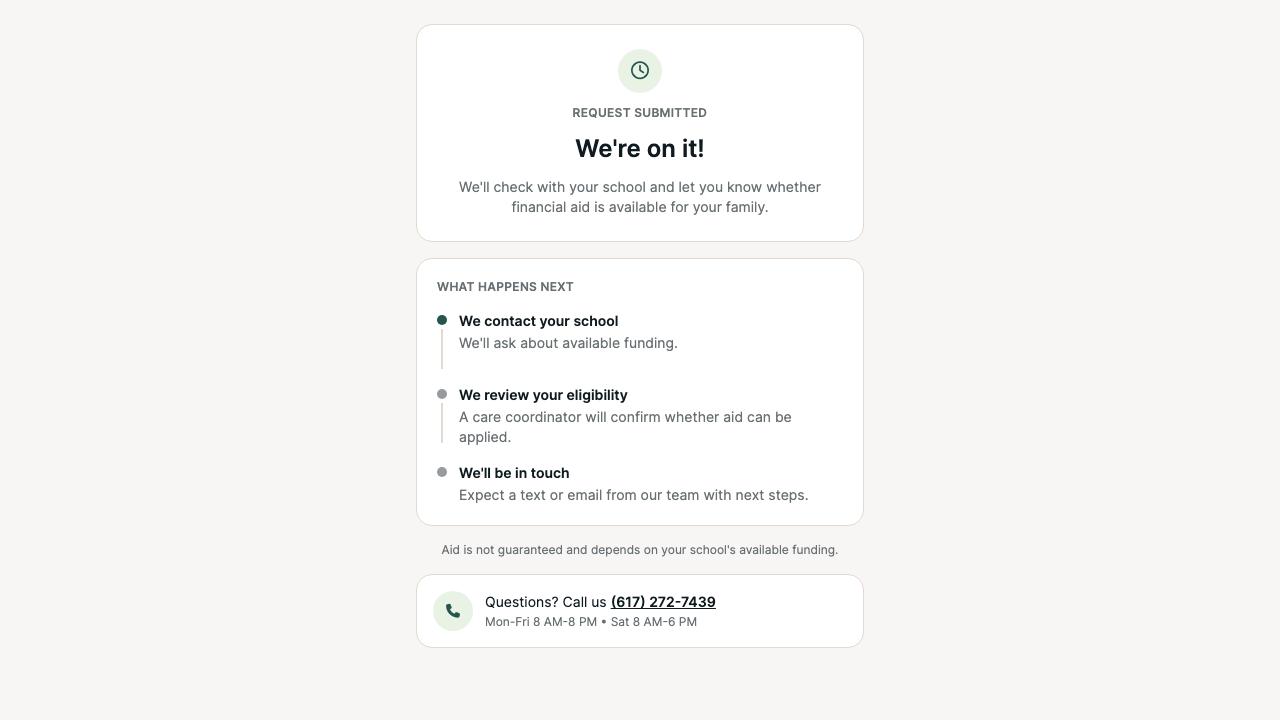
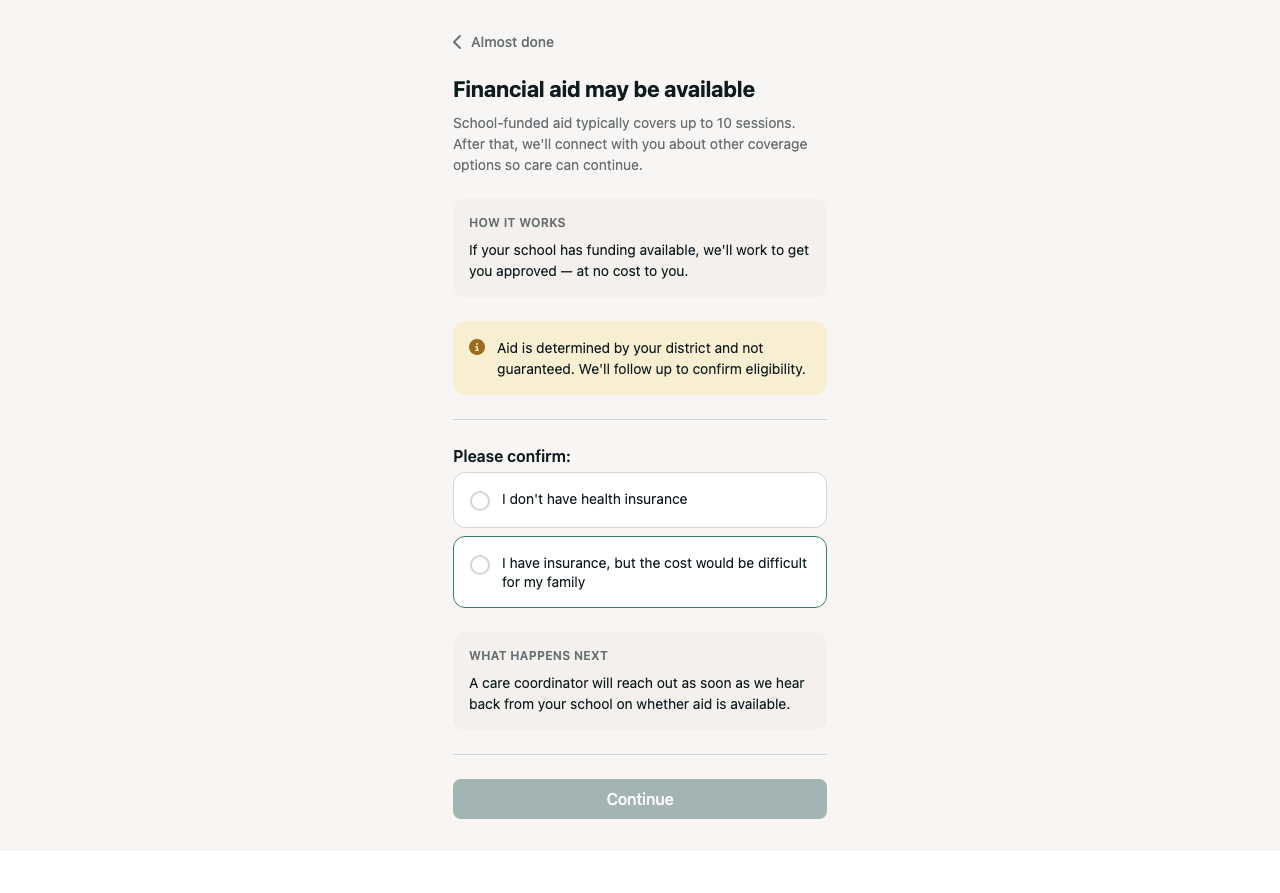
      Financial-aid submission terminal beginning at heading level 2
      Financial-aid submission terminal beginning at heading level 2

      A11Y-018

      Timed interstitials advance after three seconds without user control

      SeriousVerified
      WCAG 2.2.1
      Affected task
      Read timed reassurance/interstitial content
      Functional ability
      reading, cognition, magnification
      Environment / state
      Local Chromium, React/Rails development build 7383dd338; reassurance and insurance interstitial

      Reproduction

      1. Open reassurance and the post-insurance interstitial.
      2. Wait without interaction and observe route timing.
      3. Repeat with reduced motion.

      Observed

      The reassurance screen and post-insurance “You're in the right place” interstitial each navigated away after three seconds. Users could not turn off, adjust, extend, pause, or manually advance the limit. Reduced-motion preference did not stop the reassurance animation or timeout.

      Expected

      Content remains until user action or offers a conforming pause/extend mechanism.

      Impact

      Users who need more time to read, understand, magnify, or translate content can lose it before finishing and may be disoriented by the unsolicited route change.

      Recommended correction

      Remove the automatic limit and provide a clear Continue action, or offer a conforming mechanism to pause/extend it. Respect reduced-motion for nonessential animation independently.

      Verification

      Confirm content remains until the user advances it; test keyboard, magnification, reduced motion, and screen readers.

      Source ownership and locations

      Owner/root cause: portal/app/components/onboarding-reassurance-screen.tsx:5-47

      • portal/app/components/onboarding-reassurance-screen.tsx:5-47
      • portal/app/routes/_client.onboarding.$signedId.insurance._index/route.tsx
      Timed reassurance state under reduced-motion preference
      Timed reassurance state under reduced-motion preference

      A11Y-019

      Several option sets have no programmatic group name

      SeriousVerified
      WCAG 1.3.1
      Affected task
      Answer joint custody, service line, insurance, and consent questions
      Functional ability
      screen-reader form navigation
      Environment / state
      Local Chromium, React/Rails development build 7383dd338; joint-custody, insurance-self-report, service-line, consents

      Reproduction

      1. Open representative option-set screens.
      2. Navigate by radio, checkbox, or form controls.
      3. Inspect each group name.

      Observed

      Joint-custody, insurance self-report, service-line, and consent choices expose individually named controls but do not connect their visual question to the radio, checkbox, or button group with `fieldset`/`legend`, `aria-labelledby`, or an equivalent name. Rendered accessibility trees showed unnamed radio groups.

      Expected

      Every related option set has a programmatic name matching its visible question.

      Impact

      Screen-reader users navigating by form controls lose the question that gives repeated answers such as Yes, No, or No preference their meaning.

      Recommended correction

      Use native `fieldset`/`legend` where practical or give each group a stable accessible name derived from its visible prompt.

      Verification

      Navigate each set by form controls with VoiceOver and NVDA and confirm the question is announced with the options.

      Source ownership and locations

      Owner/root cause: portal/app/components/onboarding-joint-custody-screen.tsx:147-192

      • portal/app/components/onboarding-joint-custody-screen.tsx:147-192
      • portal/app/components/onboarding-insurance-self-report-screen.tsx:61-94
      • portal/app/components/onboarding-service-line-screen.tsx:85-126
      • portal/app/components/onboarding-consents-screen.tsx
      Optional consent choices
      Optional consent choices

      A11Y-020

      Manual-insurance errors are not associated, focused, or announced

      ModerateVerified
      WCAG 3.3.1WCAG 3.3.3WCAG 4.1.3
      Affected task
      Correct manual insurance and network errors
      Functional ability
      keyboard and screen-reader error recovery
      Environment / state
      Local Chromium, React/Rails development build 7383dd338; insurance manual entry invalid/error

      Reproduction

      1. Select an insurance company and submit Member ID empty.
      2. Inspect focus, aria-invalid, descriptions, and live regions.

      Observed

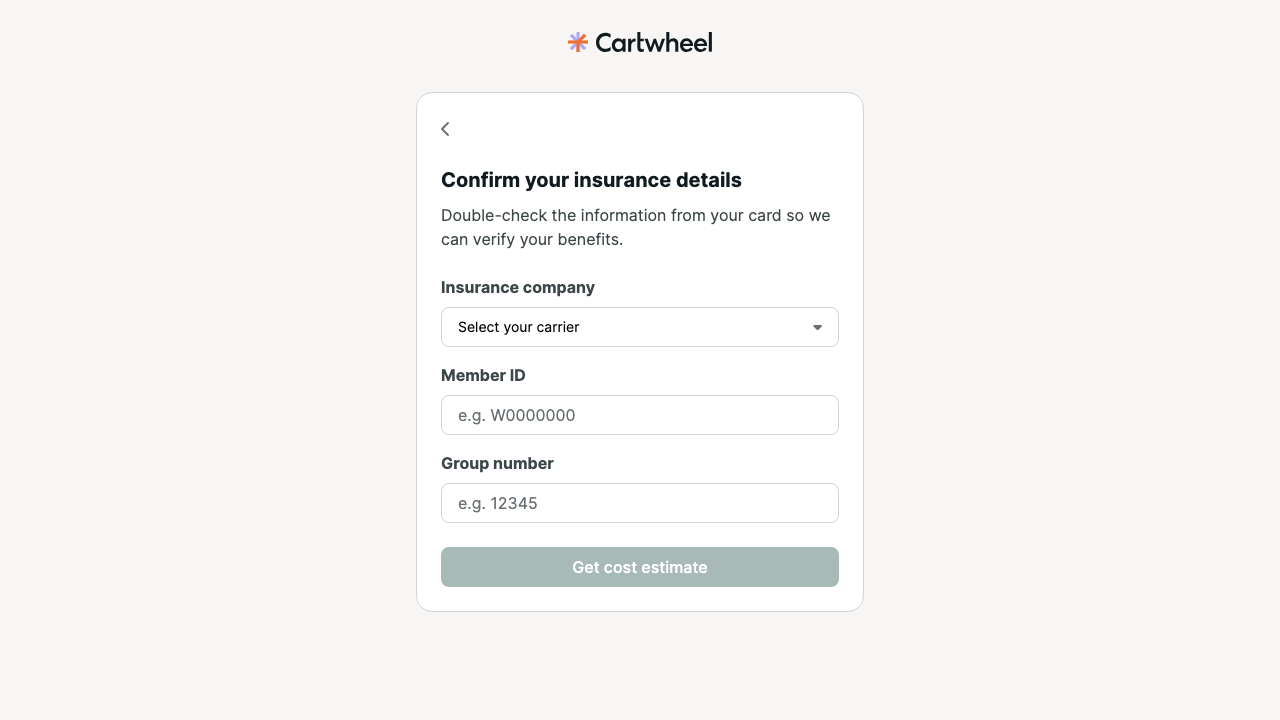
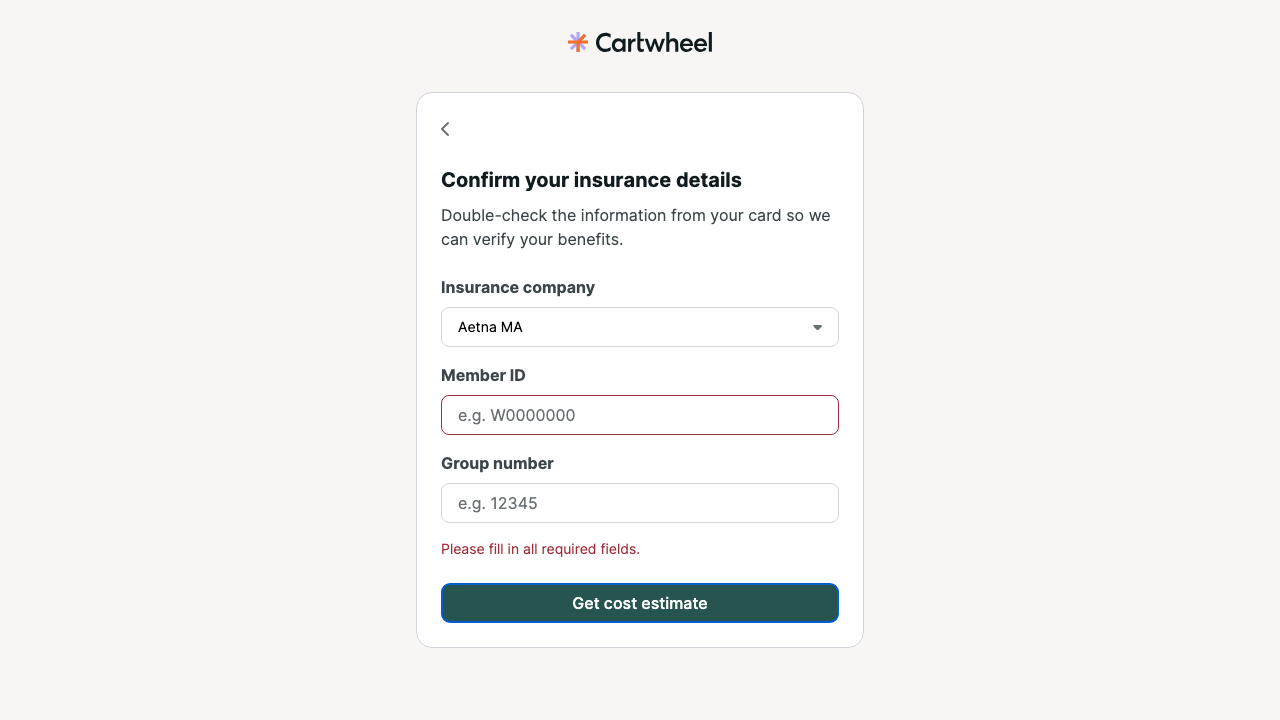
      Submitting manual insurance with an empty Member ID displayed “Please fill in all required fields,” left focus on Get cost estimate, and set `aria-invalid` without connecting the input to the visible error. The error had no alert/live semantics. Shared Announcement implementations likewise provide no status role for mutation failures.

      Expected

      Errors identify the field and correction, are associated and announced, and receive useful focus.

      Impact

      Screen-reader and keyboard users may not know submission failed, which field needs correction, or how to recover.

      Recommended correction

      Add field-specific associated messages, announce or focus an error summary, and move focus to the summary or first invalid field. Give asynchronously inserted failures appropriate alert/status semantics.

      Verification

      Trigger required-field, mutation, upload, and network failures and verify focus, associations, announcement, and retained input.

      Source ownership and locations

      Owner/root cause: portal/app/components/onboarding-insurance-manual-entry-screen.tsx:104-167

      • portal/app/components/onboarding-insurance-manual-entry-screen.tsx:104-167
      • packages/components/src/announcement.tsx:79-105
      • packages/components/src/forms-v2/announcement.tsx:48-57
      Manual insurance entry initial state
      Manual insurance entry initial state
      Manual insurance required-field error
      Manual insurance required-field error

      A11Y-021

      Localized flows expose hardcoded English content and accessible names

      SeriousVerified
      WCAG 3.1.2
      Affected task
      Complete onboarding in Spanish or Portuguese
      Functional ability
      language comprehension and screen-reader pronunciation
      Environment / state
      Local Chromium, React/Rails development build 7383dd338; localized welcome, loading, matching, completion

      Reproduction

      1. Open Spanish welcome FAQ and inspect Close.
      2. Review localized matching/loading/completion source and rendered states.
      3. Compare dates, control names, and status text with active locale.

      Observed

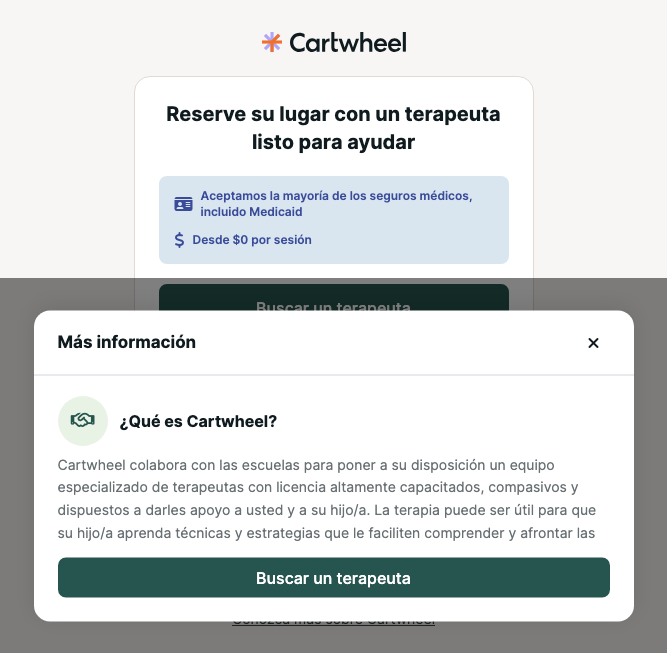
      The Spanish welcome FAQ exposed its close control as “Close.” Matching filters, loading/error text, and date/time formatters include hardcoded English; shared loading status uses “Loading...” instead of the localized visible context. Completion formatters force `en-US` output in Spanish and Portuguese flows.

      Expected

      All content and accessible names use the active locale or declare intentional language changes.

      Impact

      Families using Spanish or Portuguese can encounter controls and essential scheduling information they cannot understand or that assistive technology pronounces using the wrong language rules.

      Recommended correction

      Route all user-facing and accessible strings through i18n, format dates/times with the active locale, and use `lang` only for intentionally retained foreign-language parts.

      Verification

      Complete matching, scheduling, consent, payment, and completion in Spanish and Portuguese while inspecting visible copy and computed names.

      Source ownership and locations

      Owner/root cause: portal/app/routes/_client.onboarding.$signedId.welcome/route.tsx:184-194

      • portal/app/routes/_client.onboarding.$signedId.welcome/route.tsx:184-194
      • portal/app/routes/_client.onboarding.$signedId.matching.$serviceLineId/route.tsx:232-339
      • portal/app/routes/_client.onboarding.$signedId.complete/route.tsx:24-46
      • packages/components/src/loading-view.tsx
      • packages/components/src/spinner.tsx
      Spanish FAQ with an English Close accessible name
      Spanish FAQ with an English Close accessible name
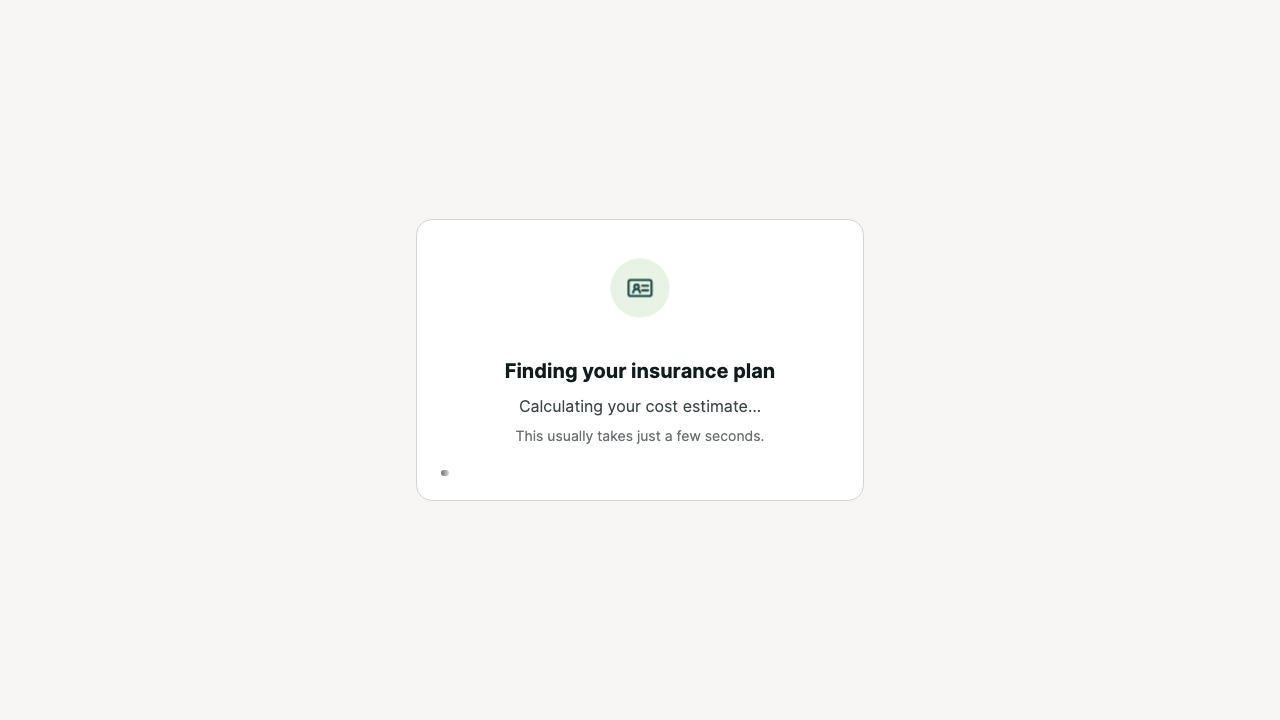
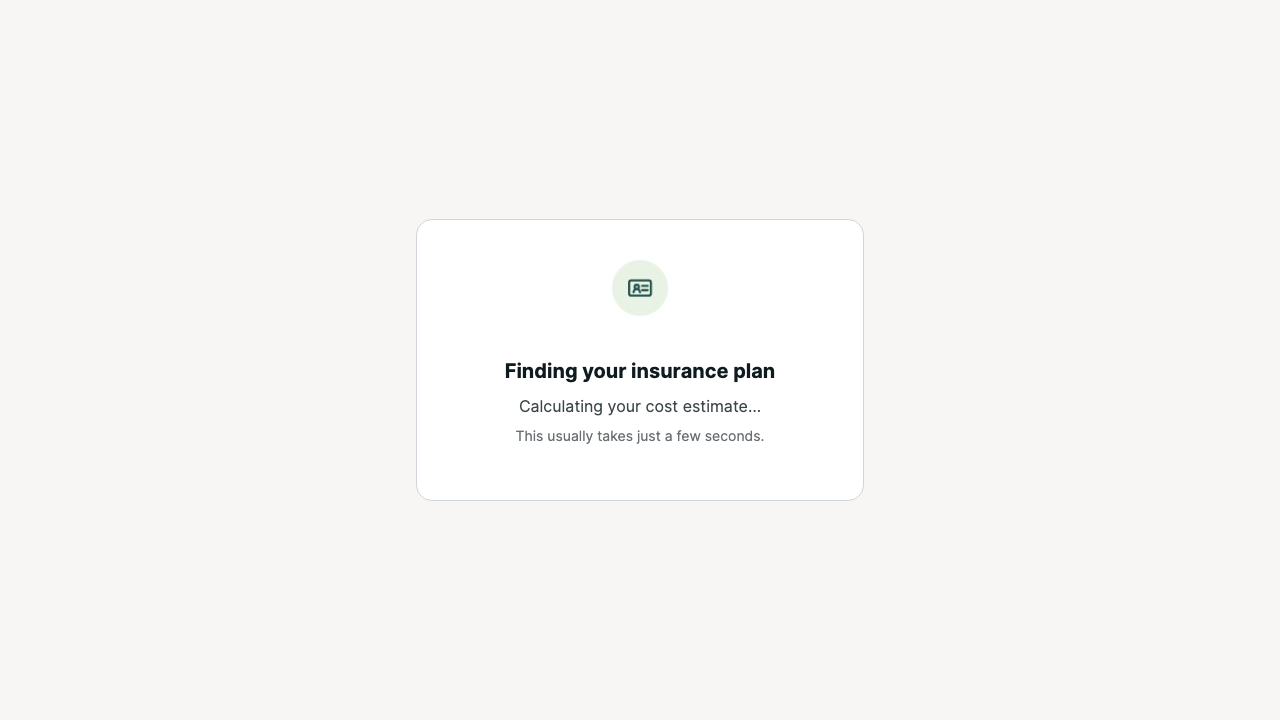
      Manual insurance polling transition
      Manual insurance polling transition

      A11Y-022

      Signer-name input does not identify its autocomplete purpose

      ModerateVerified
      WCAG 1.3.5
      Affected task
      Autofill the legal signer name
      Functional ability
      cognitive assistance and personalization
      Environment / state
      Local Chromium, React/Rails development build 7383dd338; consent signer field

      Reproduction

      1. Open the signer-name consent state.
      2. Inspect the rendered autocomplete attribute.

      Observed

      The legal signer's full-name input collects a standard personal-data purpose but has no `autocomplete="name"` token.

      Expected

      The standard autocomplete=name purpose is programmatically identified.

      Impact

      Browser autofill and assistive personalization cannot reliably identify or supply the signer's name.

      Recommended correction

      Add the standards-defined `name` autocomplete token, confirming that the field represents the person currently completing the consent.

      Verification

      Inspect the rendered token and test browser autofill without changing legal validation behavior.

      Source ownership and locations

      Owner/root cause: portal/app/components/onboarding-consents-screen.tsx:684-698

      • portal/app/components/onboarding-consents-screen.tsx:684-698
      Optional consent choices
      Optional consent choices

      A11Y-023

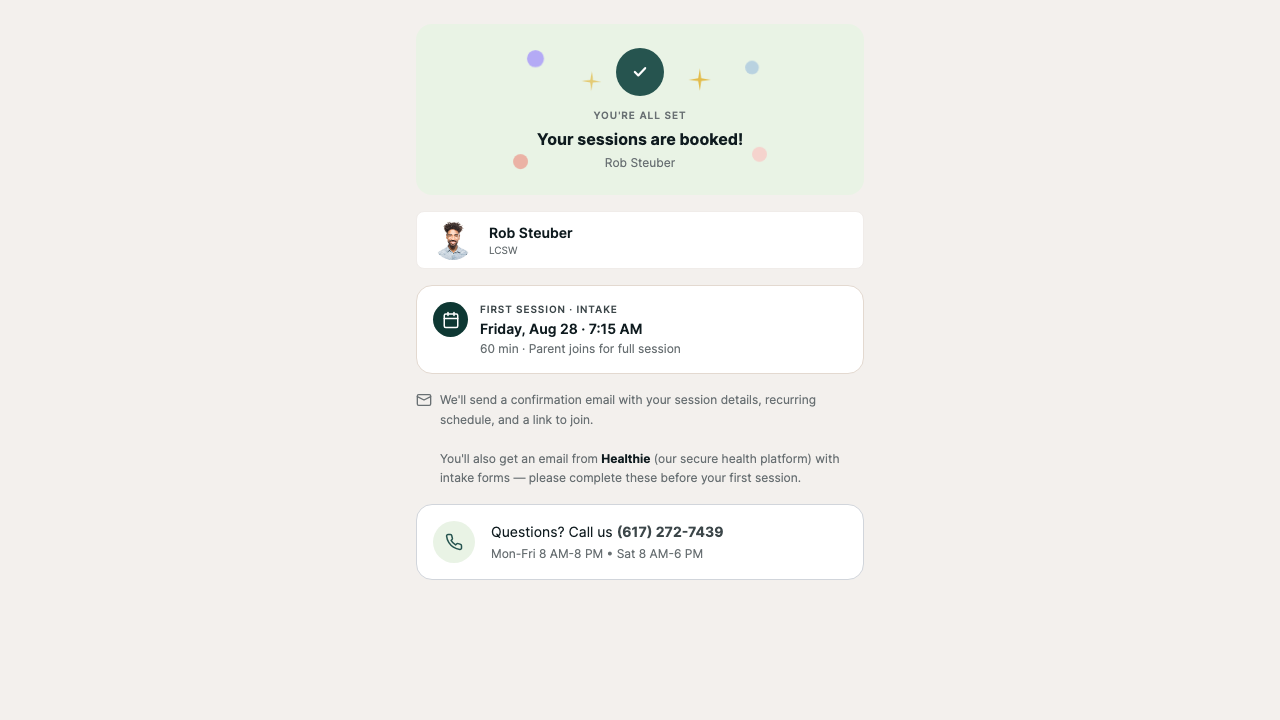
      Completion decoration is exposed as an unnamed image

      ModerateVerified
      WCAG 1.1.1
      Affected task
      Understand onboarding completion
      Functional ability
      screen-reader non-text-content navigation
      Environment / state
      Local Chromium, React/Rails development build 7383dd338; complete

      Reproduction

      1. Open the booked completion terminal.
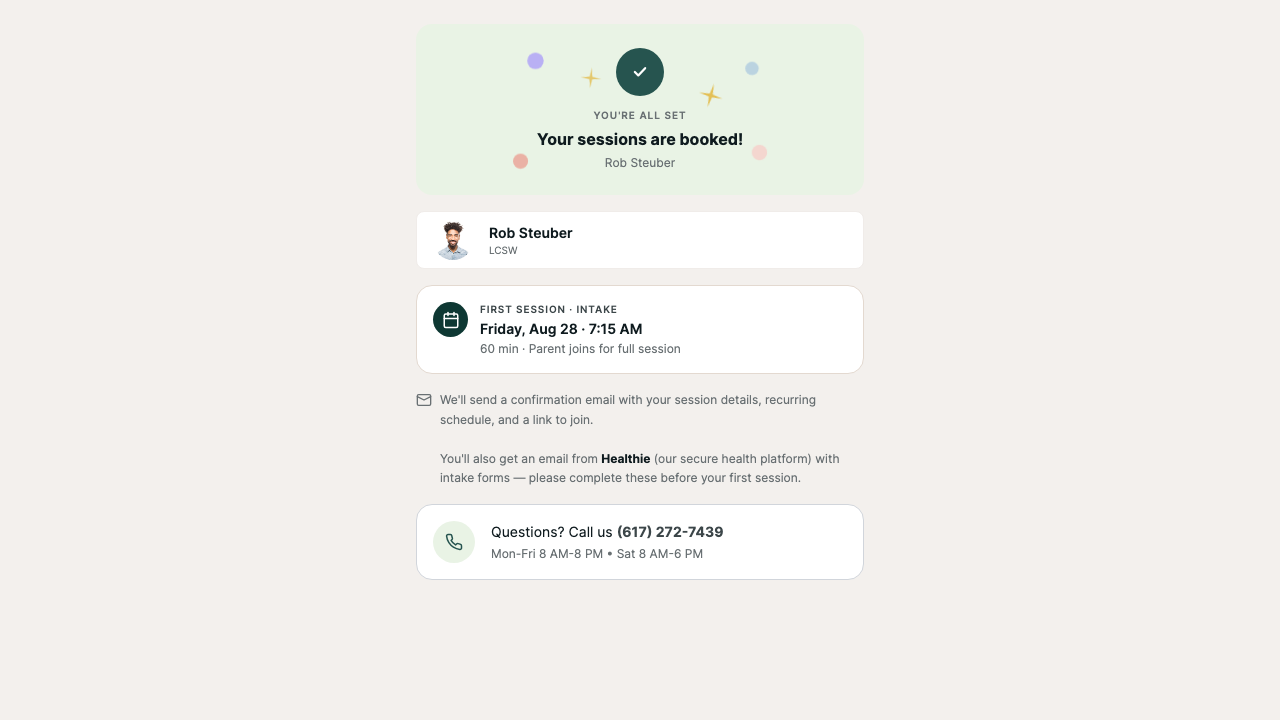
      2. Run axe and inspect the celebration SVG in the accessibility tree.

      Observed

      Axe reported `svg-img-alt` for the full-card celebration SVG, which renders `role="img"` with an empty `aria-label`.

      Expected

      Decorative art is hidden, or meaningful art has approved alternative text.

      Impact

      Assistive technology encounters an unexplained image in the completion outcome.

      Recommended correction

      Treat the celebration as decorative with `aria-hidden="true"` and no image role, or provide approved meaningful alternative text if product determines it conveys information.

      Verification

      Re-run axe and inspect the completion accessibility tree.

      Source ownership and locations

      Owner/root cause: portal/app/components/onboarding-complete-screen.tsx:102-104

      • portal/app/components/onboarding-complete-screen.tsx:102-104
      Completed onboarding terminal with booked session details
      Completed onboarding terminal with booked session details

      A11Y-024

      Completion instruction text misses minimum contrast

      ModerateVerified
      WCAG 1.4.3
      Affected task
      Read post-booking instructions
      Functional ability
      low-vision and contrast perception
      Environment / state
      Local Chromium, React/Rails development build 7383dd338; complete

      Reproduction

      1. Open the booked completion terminal.
      2. Measure the email/Healthie instruction foreground and background contrast.

      Observed

      Axe measured the 12 px email/Healthie instruction text at 4.44:1 (`#697073` on `#f3f0ed`), below the required 4.5:1 for normal text.

      Expected

      Normal text has at least 4.5:1 contrast with safety margin.

      Impact

      Users with low vision or reduced contrast sensitivity may have difficulty reading required post-booking instructions.

      Recommended correction

      Use a foreground/background pair that clears 4.5:1 with margin for rendering variation.

      Verification

      Re-measure the rendered state and check default, zoomed, and forced-colors presentation.

      Source ownership and locations

      Owner/root cause: portal/app/components/onboarding-complete-screen.tsx:249-257

      • portal/app/components/onboarding-complete-screen.tsx:249-257
      Completed onboarding terminal with booked session details
      Completed onboarding terminal with booked session details

      A11Y-025

      Insurance special options navigate immediately when selected

      ModerateVerified
      WCAG 3.2.2
      Affected task
      Choose insurance payment/coverage path
      Functional ability
      keyboard, screen-reader, and cognitive orientation
      Environment / state
      Local Chromium, React/Rails development build 7383dd338; insurance carrier lookup

      Reproduction

      1. Open the carrier combobox.
      2. Select I do not have insurance or Self-pay without pressing Continue.
      3. Observe the immediate screen/route change.

      Observed

      Selecting “I don't have insurance” or “Self-pay” inside the Insurance carrier combobox immediately changes screen or route rather than setting a value for the existing Continue action. A keyboard search for a carrier can therefore navigate when a pinned special option is selected.

      Expected

      Changing a selection does not change context unless users are advised before the control.

      Impact

      Keyboard, screen-reader, and cognitive-access users can be disoriented by an unexpected context change during selection.

      Recommended correction

      Store the selection and require the existing Continue action, or clearly advise users before the control that selecting those options changes context immediately.

      Verification

      Select every carrier and special option with pointer, keyboard, and screen reader and confirm context changes only as communicated.

      Source ownership and locations

      Owner/root cause: portal/app/components/onboarding-insurance-zip-lookup-screen.tsx:118-137

      • portal/app/components/onboarding-insurance-zip-lookup-screen.tsx:118-137
      Open carrier-search popup without a dialog name
      Open carrier-search popup without a dialog name

      Human validation

      Assistive-technology handoff

      VoiceOver + Safari

      Complete welcome → identity → concerns → insurance → consent → matching. Observe route context, error announcement, consent groups, dialogs, progress, and appointment selection.

      NVDA + Chrome/Firefox

      Repeat the core task. Verify virtual-cursor reading order, form-control groups, live status, unique appointment names, and focus after SPA changes.

      Keyboard, zoom & magnification

      Complete the task at actual 200% browser zoom and screen magnification. Confirm uploads, focus visibility/obscuration, errors, payment handoff, and retained data.

      Speech input & disabled-user testing

      Verify visible labels match accessible names, then test comprehension, fatigue, consent confidence, unexpected transitions, and error recovery with representative families.

      Evaluation coverage

      Sample and limitations

      AreaStatus
      Welcome EnSampled
      Welcome EsSampled
      Identity Initial ErrorsSampled
      ConcernsSampled
      Service LineSampled
      Address ErrorsSampled
      Insurance Card UploadSampled
      Consents Required OptionalSampled
      Legal Terms DialogSampled
      ReassuranceSampled
      Invalid LinkSampled
      MatchingSampled
      Scheduling ConfirmationPartial
      Insurance Lookup PollingPending
      Welcome PtSampled
      Forced ColorsPartial
      Screen ReadersHuman Required
      Legacy ParityNot Exercised
      Insurance Lookup ComboboxSampled
      Financial AidSampled
      WaitlistSampled
      Payment StripeSampled
      Completion And Pending TerminalsSampled
      Insurance Manual EntrySampled
      Insurance PollingSampled
      Safety Review TerminalSampled
      Rte Review TerminalSampled
      Red Flag TerminalSampled
      No Cost TerminalSampled
      Matching Filters ResponsiveSampled
      LandscapeSampled
      Localized DownstreamPartial
      Browser Zoom 200Not Exercised
      VoiceoverHuman Required
      NvdaHuman Required

      Explicit limitations

      Visual record

      Evidence gallery

      All captures use synthetic local data and omit browser chrome and signed URLs. Select an image to open the full-size file.

      Method and package

      Reproducible audit materials

      Environment: local development, main at 7383dd338. Tools: agent-browser 0.9.0, Playwright 1.56.1, pinned axe-core 4.13.0, rendered DOM/accessibility-tree inspection, real keyboard events, and source review.

      Privacy: one synthetic local referral was used. Signed IDs, cookies, secrets, and identity values are excluded from retained data and filenames.

      Raw machine results